How to Add a Logo in BeeForm
Upload and customize your brand logo in BeeForm with options for size, position, and placement.
- Open BeeForm Designer
- Navigate to Logo Settings
- Upload Your Logo
- Adjust Logo Size
- Position Your Logo
Open BeeForm Designer
Launch your Google Form and access BeeForm by clicking the Add-ons icon in the toolbar. Select BeeForm and click 🚀 Open App to open the Designer window.
Navigate to Logo Settings
In the Settings Panel on the left, look for the Logo section.
You may need to scroll down to find it. Click on it to expand the logo
customization options.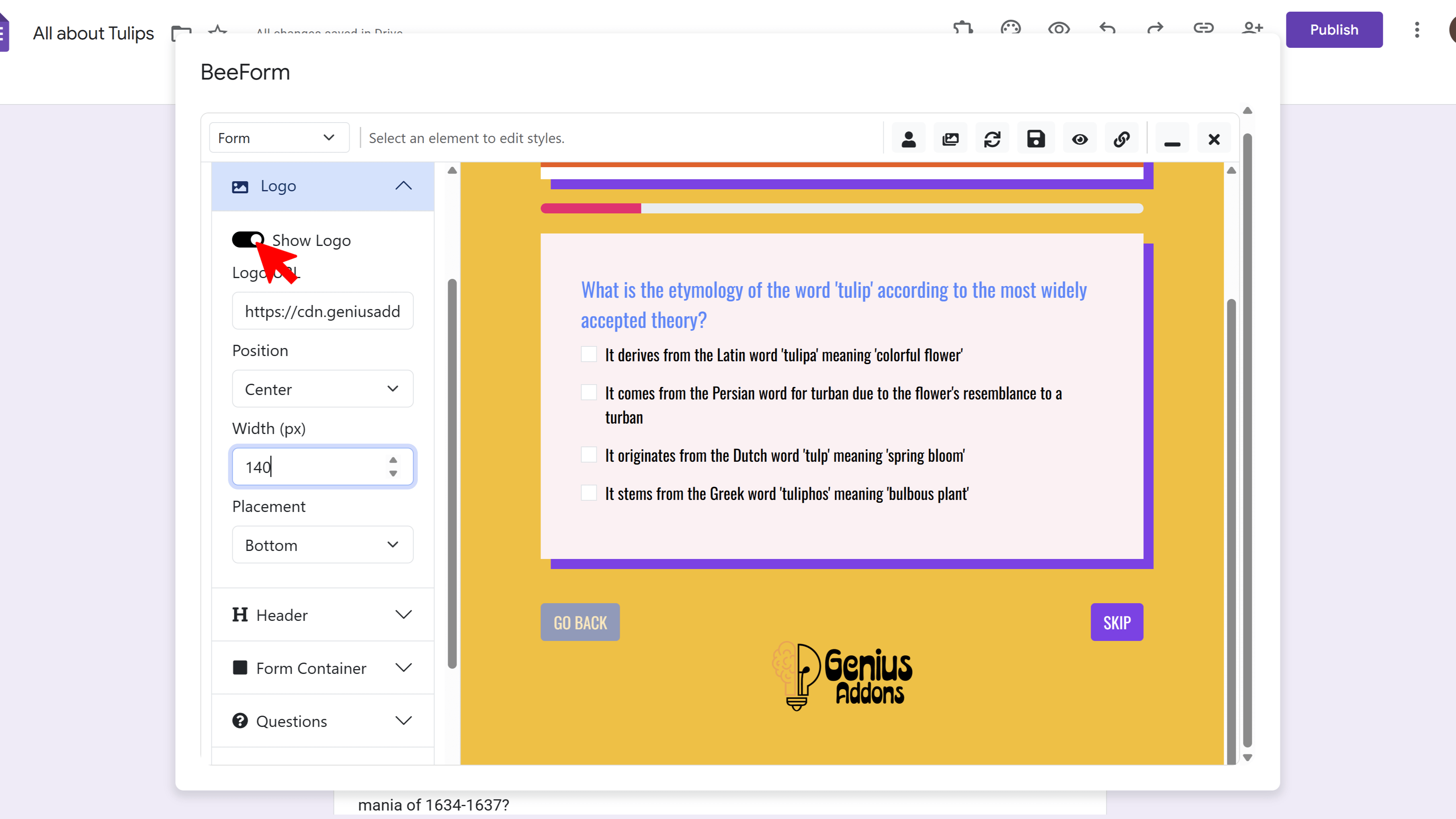
Upload Your Logo
Click the Upload Image button in the Logo section. A file picker will appear. Navigate to where your logo file is saved on your computer, select it (supported formats include PNG, JPG, and SVG), and click Open. Your logo will upload and appear in the form preview.
Adjust Logo Size
Below the image upload area, you'll see size options: Small, Medium, or Large. Click the size that best fits your design. The preview will update immediately so you can see how each size looks with your form layout.
Position Your Logo
Choose where you want your logo to appear by selecting from position options: Top, Bottom, Left, Center, or Right. Most forms use Top Center or Top Left positioning. Once satisfied, click the Save icon in the toolbar to save your changes.
Tips and Best Practices
- Use a PNG file with a transparent background for the best results, especially if your form has a colored background.
- Keep your logo file size under 1MB for faster loading times.
- Make sure your logo is high resolution (at least 300x300 pixels) so it looks crisp on all devices.
Common Pitfalls to Avoid
- Don't use logos with very small text - they may become unreadable when resized.
- Avoid using white logos on white backgrounds or dark logos on dark backgrounds - ensure good contrast.
- If your logo doesn't appear after uploading, try refreshing the preview or using a different image format.
External Resources
BeeForm: Pretty Forms Designer
Transform your Google Forms into beautiful, professional, and highly customizable web forms.
- Professional preset themes
- Complete design customization
- Wizard mode for multi-step forms
- Response limits & notifications
- Easy-to-use visual designer
- Works directly in Google Forms