How to Publish Your Form in BeeForm
Save your design, get your shareable link, preview your form, and distribute it to collect responses.
6 min read
Updated 1/26/2026
Complete Your Design
Before publishing, make sure you've finished customizing your form's appearance in the BeeForm Designer. Check that colors, fonts, layouts, and all settings are exactly how you want them. Review your form in the preview pane to ensure everything looks correct.
Save Your Form
Click the Save icon (floppy disk symbol) in the BeeForm
toolbar at the top of the Designer window. Wait for the confirmation message
that appears when your design has been saved successfully. All your
customizations are now stored and ready to be published.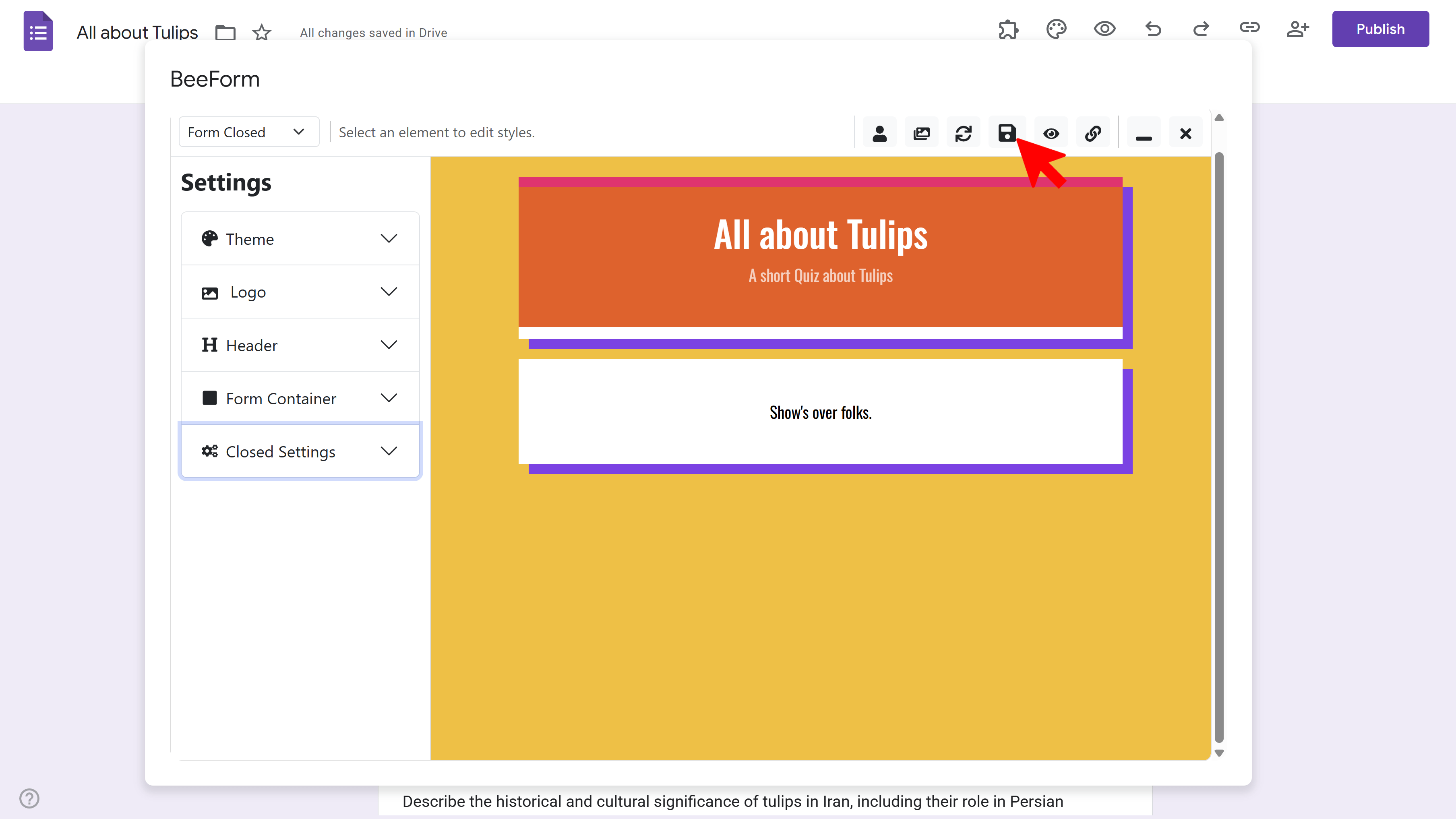
Get Shareable Link
Click the Link icon (chain symbol) in the toolbar. A modal
window will appear displaying your unique BeeForm URL. This is the link you'll
share with respondents. Click the Copy button to copy the
link to your clipboard.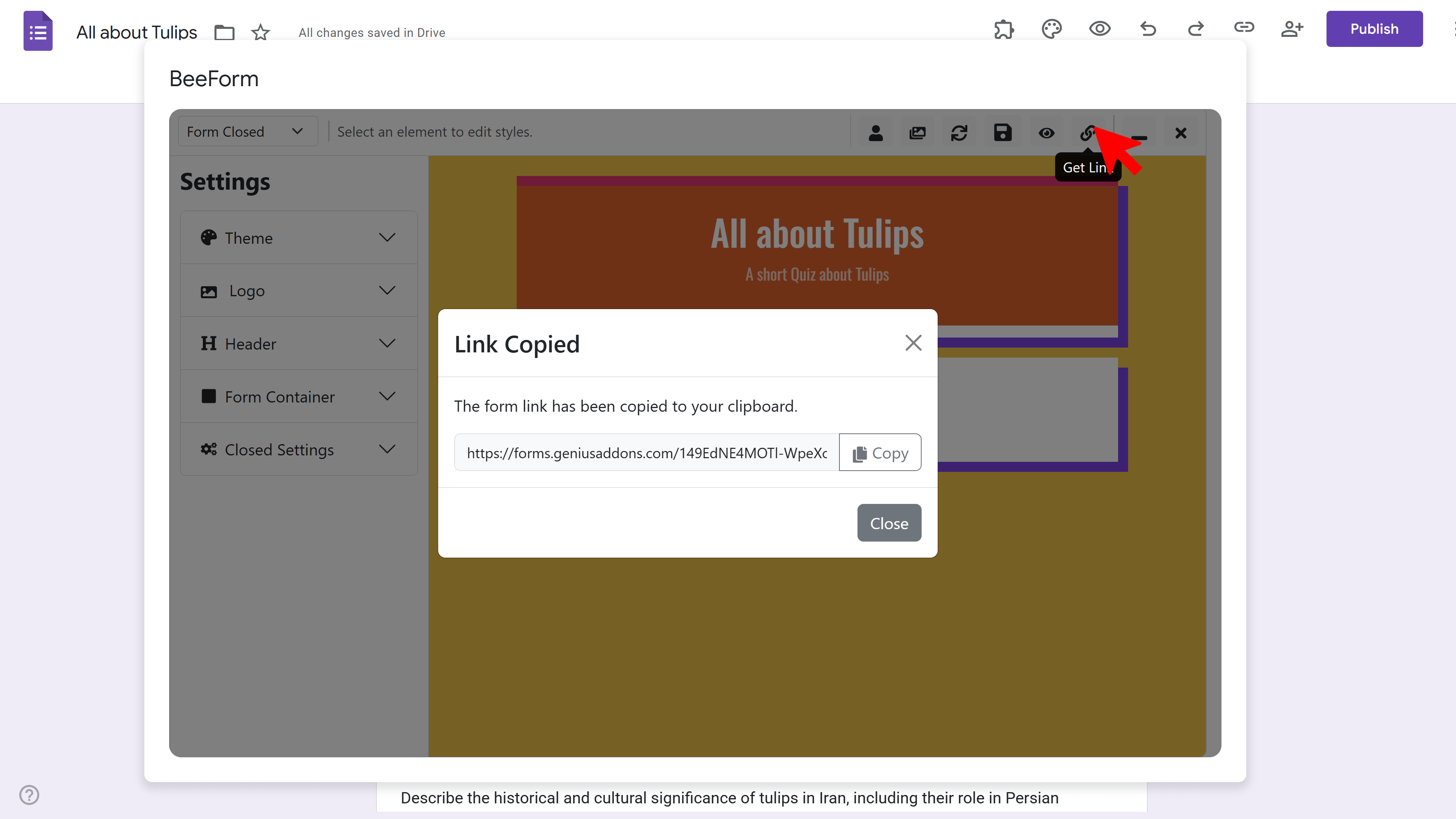
Preview Your Form
Before sharing widely, test your form by clicking the Eye icon (preview) in the toolbar. This opens your form in a new tab exactly as respondents will see it. Try filling it out to ensure all questions, styling, and features work correctly.
Share Your Form
Now you're ready to share! Paste the BeeForm link into emails, social media posts, your website, or anywhere you want to collect responses. Remember to use the BeeForm link (not the standard Google Form link) so respondents see your beautiful custom design.
Tips and Best Practices
- Always preview and test your form before sharing it with your actual audience to catch any issues.
- Bookmark your BeeForm link for easy access if you need to share it multiple times.
- All responses submitted through the BeeForm link are saved in your Google Form's Responses tab, just like standard Google Forms.
Common Pitfalls to Avoid
- Don't share the standard Google Form link if you want respondents to see your BeeForm design - use the BeeForm link instead.
- Remember to save your design before getting the shareable link, or respondents may see an older version.
- If you make changes to your form design, save again to update what respondents see.
External Resources
Try Free
BeeForm: Pretty Forms Designer
Transform your Google Forms into beautiful, professional, and highly customizable web forms.
- Professional preset themes
- Complete design customization
- Wizard mode for multi-step forms
- Response limits & notifications
- Easy-to-use visual designer
- Works directly in Google Forms