How to Customize QR Code Styles in CrabQR
Customize your QR code design with CrabQR's advanced styling options. Change colors, corner styles, add text overlays, and create branded QR codes that match your visual identity.
5 min read
Updated 2/10/2026
- Open QR Code Designer
- Select Color Options
- Choose Corner Styles
- Adjust Error Correction Level
- Save as Template
Open QR Code Designer
When creating a new QR code or editing an existing one, look for the Style section in the form. Click on Customize Style or select Create New Style from the style dropdown menu. This opens the QR Code Style Designer where you can control every visual aspect of your QR code.
Select Color Options
The Style Designer displays four color pickers:
Foreground Color (the main QR code dots),
Background Color (the area behind the code),
Eye Outer Color (the corner square frames), and
Eye Inner Color (the dots inside corners). Click each color
picker to choose colors that match your brand. For best scanning reliability,
ensure high contrast between foreground and background colors.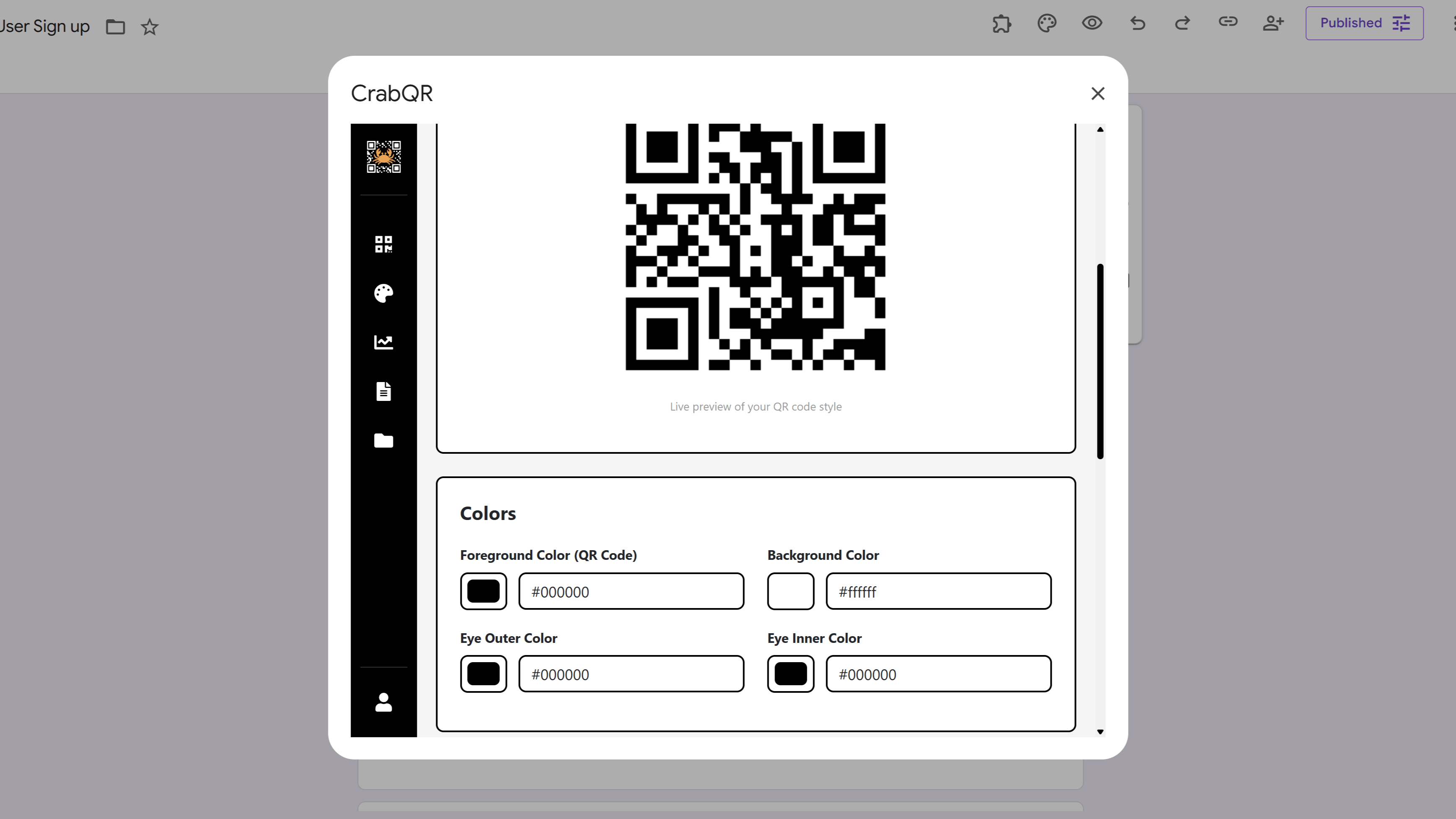
Choose Corner Styles
Scroll down to the Corner Style section. Here you can choose
from four different styles: Square (classic, sharp edges),
Rounded (smooth corners),
Extra-Rounded (very smooth, modern look), or
Dot (circular dots instead of squares). The preview updates
in real-time as you select different options, helping you see which style fits
your design aesthetic.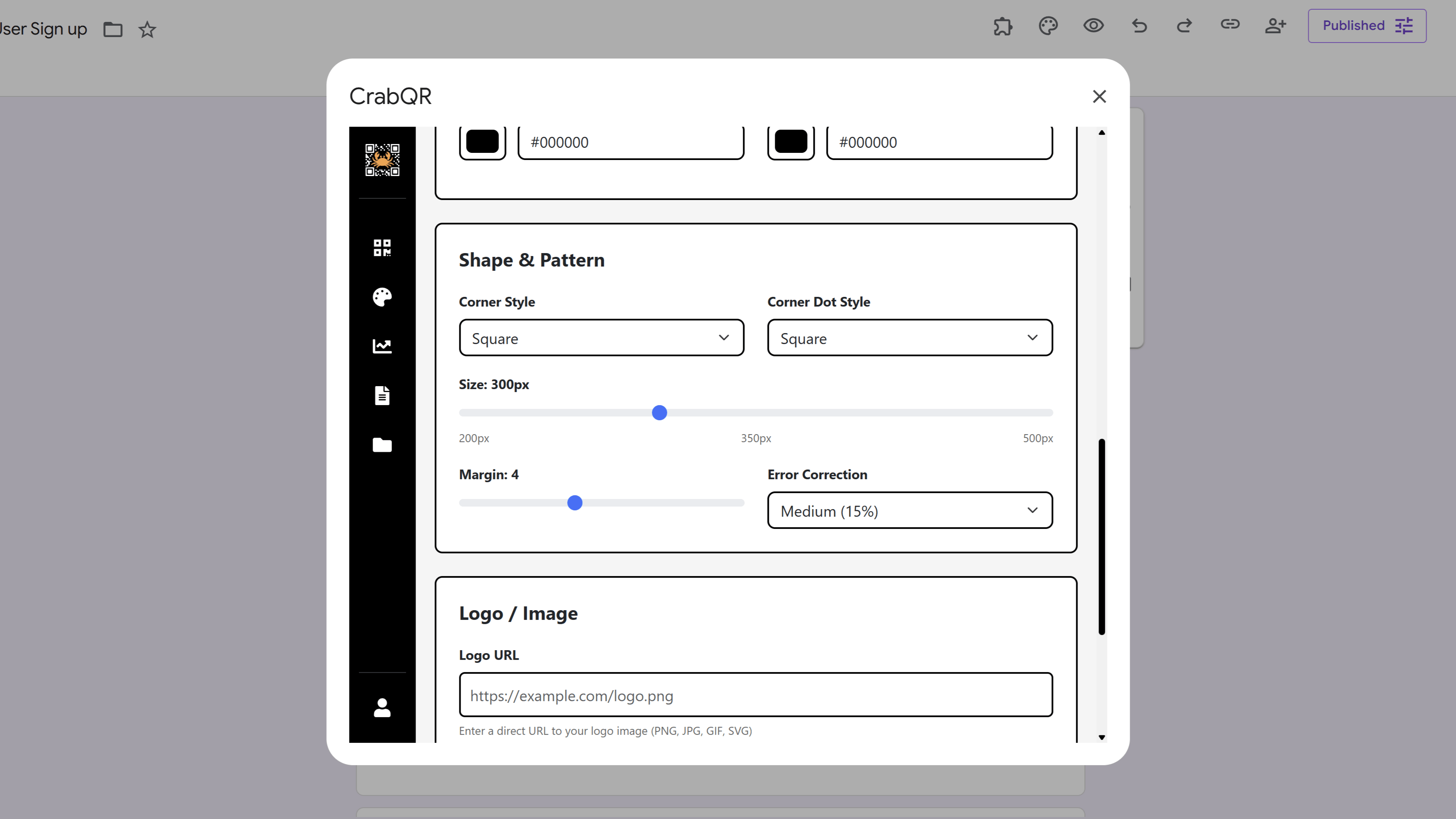
Adjust Error Correction Level
Find the Error Correction dropdown in the style settings.
Choose from four levels: L (Low - 7%),
M (Medium - 15%), Q (Quartile - 25%), or
H (High - 30%). Higher error correction allows your QR code
to still scan even if partially damaged or obscured, but creates a denser QR
code. Medium (M) is recommended for most uses, while High (H) is best if
you're adding a logo.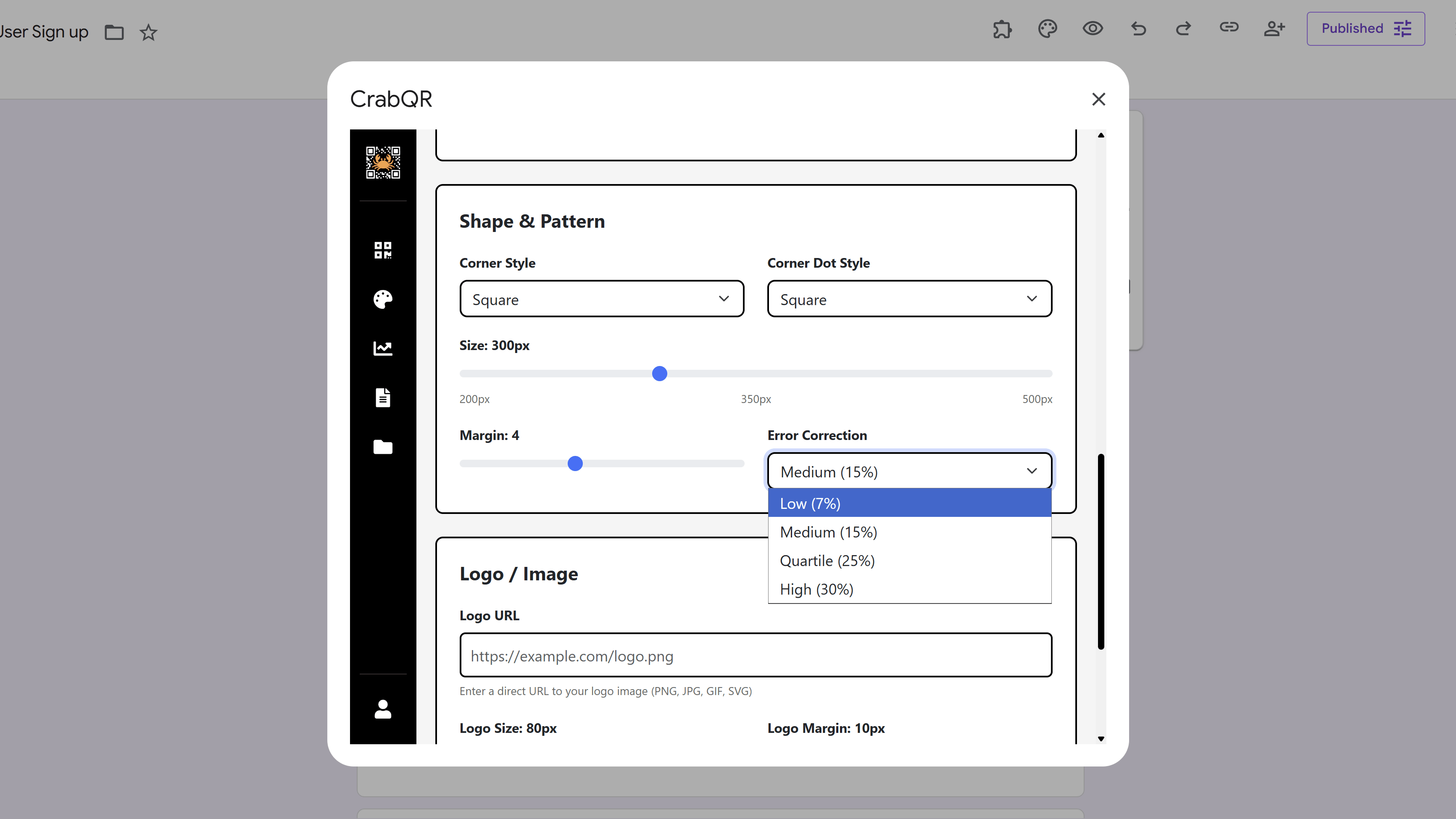
Save as Template
Once you've perfected your style, check the Save as Template box at the bottom of the designer. Give your style a memorable name like "Brand Colors" or "Event Style". Click Save to add this style to your template library. You can now quickly apply this style to any future QR codes without recreating all the settings. You can also set it as your default style for new QR codes.
Tips and Best Practices
- Always maintain high contrast between foreground and background colors - aim for dark on light or light on dark.
- Test your customized QR codes with multiple smartphone cameras to ensure they scan reliably across different devices.
- Use your brand colors to create QR codes that match your marketing materials and strengthen brand recognition.
- If adding a logo later, set error correction to High (H) to maintain scannability with the logo overlay.
Common Pitfalls to Avoid
- Don't use colors that are too similar for foreground and background - low contrast makes QR codes difficult to scan.
- Avoid using very light colors for the foreground on white backgrounds, or very dark colors on black backgrounds.
- Don't use Low (L) error correction if you plan to add a logo - it may prevent successful scanning.
- Remember that some older QR code scanners work best with traditional black on white codes.
Try Free
CrabQR: QR Code Generator & Analytics
Create, customize, and track QR codes with advanced styling, landing pages, and comprehensive analytics. Perfect for marketing and event management.
- Dynamic QR code generation
- Advanced styling & customization
- Custom landing pages
- Real-time scan analytics
- Bulk QR code creation
- Built right into Google Workspace