How to Organize QR Codes with Folders in CrabQR
Keep your QR codes organized with CrabQR's folder system. Create hierarchical folder structures, move QR codes between folders, and manage large QR code collections efficiently.
- Navigate to Management Section
- Create New Folder
- Create Nested Subfolders
- Move QR Codes to Folders
- Browse Folder Structure
Navigate to Management Section
In the CrabQR sidebar, click on Management from the main navigation menu. This section displays all your QR codes in a grid view with options to organize them. Initially, all QR codes appear in the Uncategorized root folder. As you create more QR codes for different campaigns, projects, or clients, organizing them into folders becomes essential for efficient management.
Create New Folder
Look for the + New Folder button, typically located near the
top of the Management section. Click it to open the folder creation dialog.
Enter a descriptive name for your folder (e.g., "Marketing Campaigns",
"Product QR Codes", or "2026 Events"). In the
Parent Folder dropdown, select "Root" to create a top-level
folder, or choose an existing folder to create it inside. Click
Create to save your new folder.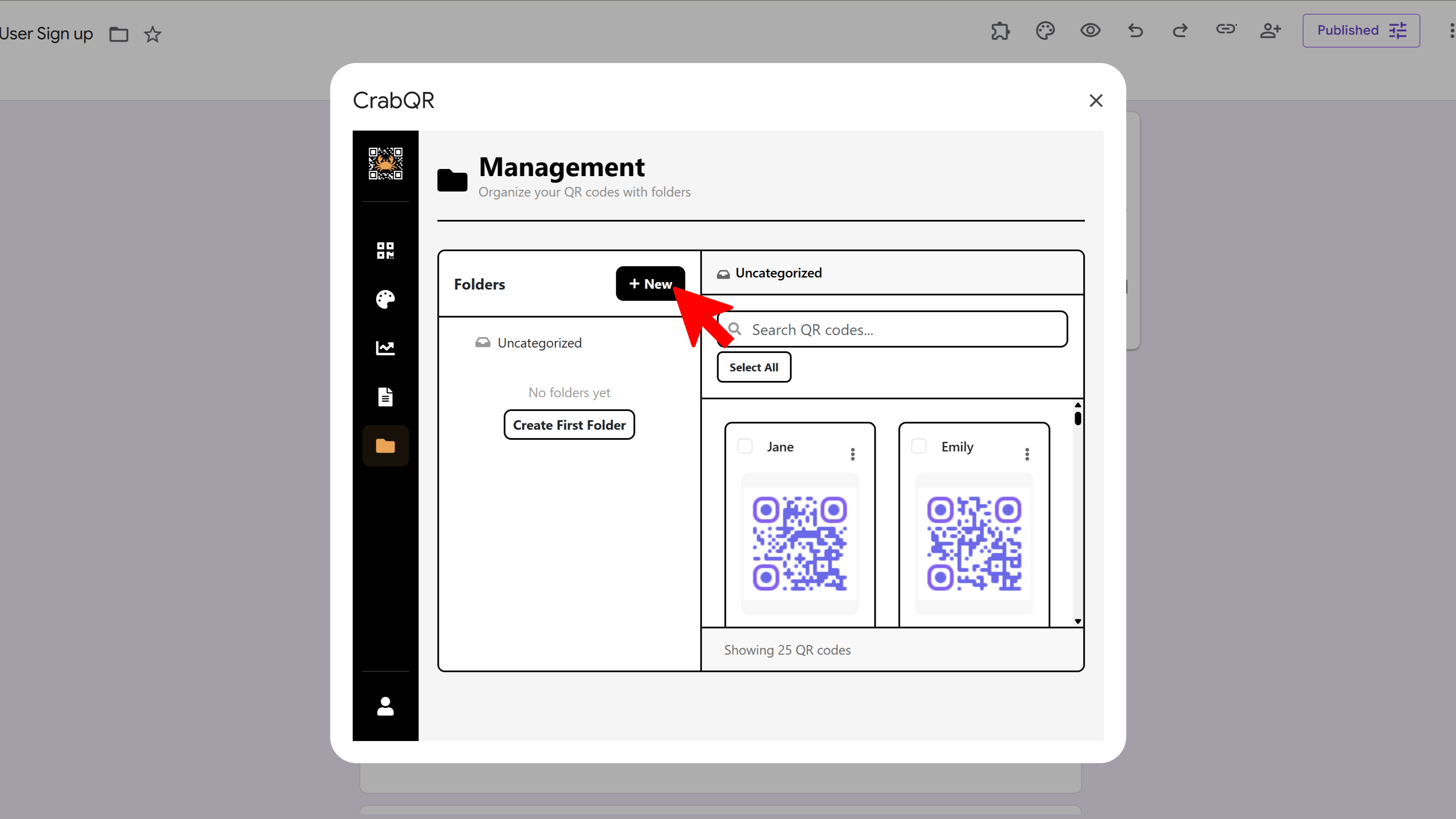
Create Nested Subfolders
To build a hierarchical structure, create subfolders within existing folders.
Click + New Folder again, but this time select a parent
folder from the dropdown instead of "Root". For example, you might create "Q1
2026" and "Q2 2026" folders inside a "Marketing Campaigns" parent folder, then
create "Social Media" and "Email Campaign" folders inside each quarter. CrabQR
supports unlimited nesting depth for complex organizational needs.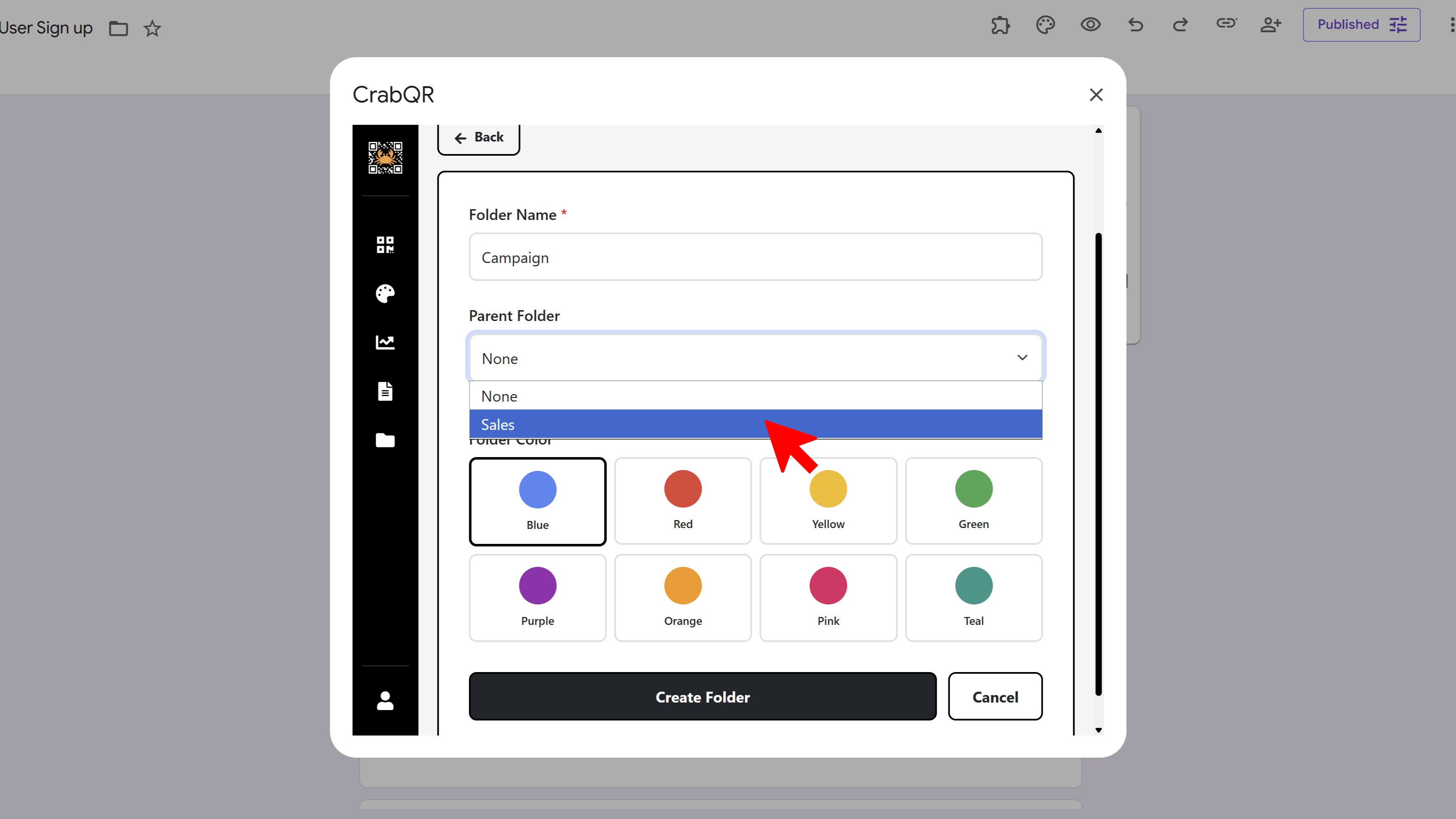
Move QR Codes to Folders
To organize your QR codes, use the checkbox next to each QR code card to
select multiple codes. You can select codes from the current view by checking
the boxes. Once you've selected one or more QR codes, a
Move Selected button appears in the toolbar. Click it to open
a folder selector, choose your destination folder, and click
Move. The selected QR codes will immediately move to the new
folder. You can also move individual QR codes by clicking their menu icon and
selecting "Move".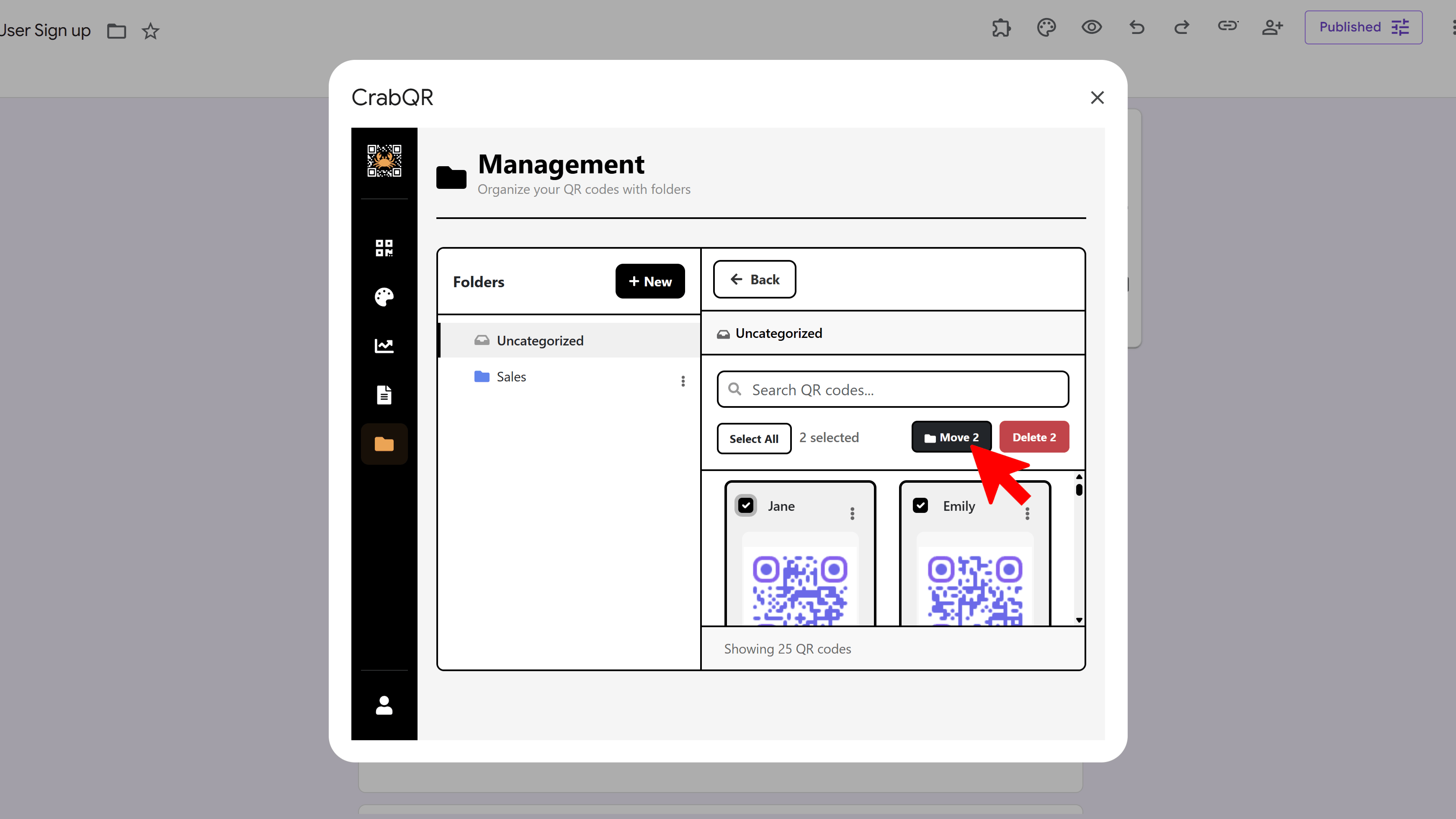
Browse Folder Structure
Navigate through your folder structure by clicking on folder names in the tree view on the left side of the Management section. The tree is collapsible - click the arrow icon next to folders to expand or collapse them. The main panel updates to show only the QR codes in the currently selected folder. Use the breadcrumb navigation at the top to quickly jump back to parent folders or return to the root level. You can also rename or delete folders by clicking their menu icon.
Tips and Best Practices
- Create a logical folder hierarchy before generating many QR codes - it's easier to organize as you go.
- Use naming conventions that make sense for your workflow, such as by campaign, date, client, or product category.
- Take advantage of unlimited nesting to create detailed structures for large-scale QR code management.
- Use the search function to find QR codes across all folders quickly without browsing through the hierarchy.
Common Pitfalls to Avoid
- Don't create too many top-level folders - use nesting to keep your main folder list manageable.
- Avoid vague folder names like "Old" or "Misc" - use specific, descriptive names for better organization.
- When deleting folders, choose carefully whether to delete contained QR codes or move them to another folder first.
- Remember that folders are just for organization - deleting a folder doesn't affect the QR codes' functionality if you move them.
CrabQR: QR Code Generator & Analytics
Create, customize, and track QR codes with advanced styling, landing pages, and comprehensive analytics. Perfect for marketing and event management.
- Dynamic QR code generation
- Advanced styling & customization
- Custom landing pages
- Real-time scan analytics
- Bulk QR code creation
- Built right into Google Workspace