How to Set Up PIN Protection for QR Codes in CrabQR
Secure your QR codes with PIN protection in CrabQR. Learn how to add password protection, set expiration dates, and limit scan counts for enhanced security.
Edit Existing QR Code
Navigate to the Management section in CrabQR and locate the QR code you want to protect. Click on the QR code card to open its details, then click the Edit button (pencil icon) to open the QR code editing form. You can also add PIN protection when creating a new QR code. PIN protection is useful for restricting access to sensitive content, exclusive offers, private events, or age-restricted materials.
Enable Security Settings
In the QR code editing form, go to the
Security tab. You may need to expand this section by clicking
on it. Toggle the Enable Security switch to activate security
features. Once enabled, you'll see additional options for PIN protection,
expiration dates, and scan limits. These security features help you control
who can access your QR code content and when.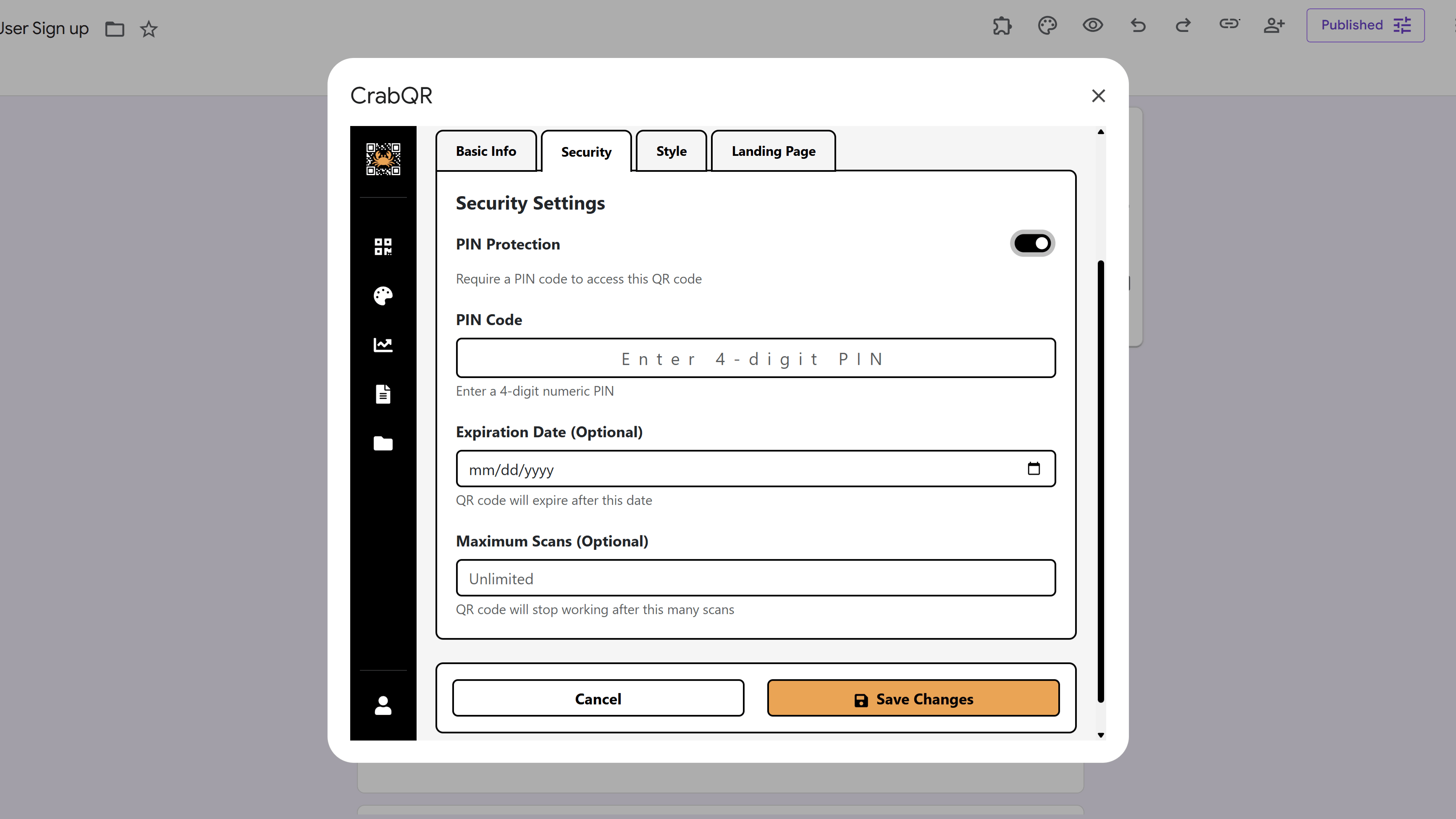
Set a PIN Code
In the security tab, check the PIN Protection checkbox. A PIN
code input field will appear. Enter a 4 digit PIN that users must enter to
access your QR code's destination. Choose a PIN that's memorable but not too
obvious (avoid 0000 or 1234). When someone scans your QR code, they'll be
presented with a PIN challenge page where they must enter this code before
being redirected to the target URL. Failed PIN attempts are tracked for
security monitoring.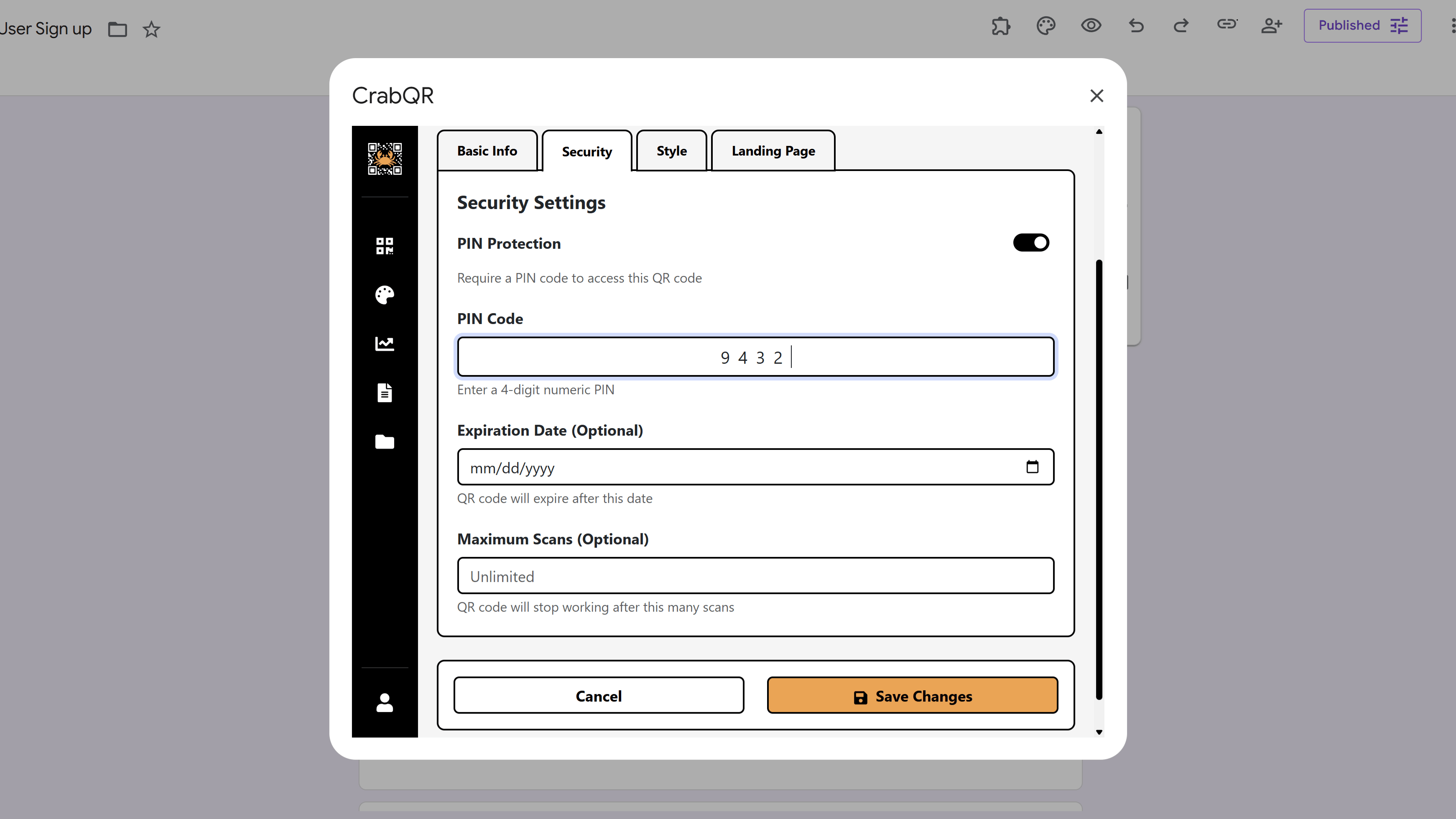
Configure Expiration Options
Below the PIN settings, you'll find expiration options. You can set a Date Expiration by selecting a specific date after which the QR code will no longer work. Alternatively or additionally, set a Scan Limit by entering the maximum number of times the QR code can be scanned before it expires. You can also customize the Expiration Message that users will see if they try to scan an expired QR code. These options are perfect for limited-time offers, event tickets with capacity limits, or temporary access codes.
Tips and Best Practices
- Share the PIN through a separate communication channel from the QR code for better security (e.g., email the PIN, print the QR).
- Use PIN protection for exclusive content, VIP access, member-only resources, or age-restricted materials.
- Consider using expiration dates for time-limited events or promotional campaigns to maintain exclusivity.
- Document your PINs in a secure location - you'll need them to share with authorized users.
- Combine PIN protection with scan limits for ticket-style QR codes to prevent sharing beyond intended capacity.
Common Pitfalls to Avoid
- Don't use easily guessable PINs like 0000, 1234, or repeating digits - choose random numbers for better security.
- Avoid printing the PIN directly on materials with the QR code - this defeats the purpose of protection.
- Don't forget to test PIN protection before distributing - ensure the challenge page displays and functions correctly.
- Remember that PIN protection adds friction - only use it when security is truly necessary, not for casual content.
- Be aware that expired QR codes cannot be reactivated - you'll need to create new codes if you extend campaigns.
CrabQR: QR Code Generator & Analytics
Create, customize, and track QR codes with advanced styling, landing pages, and comprehensive analytics. Perfect for marketing and event management.
- Dynamic QR code generation
- Advanced styling & customization
- Custom landing pages
- Real-time scan analytics
- Bulk QR code creation
- Built right into Google Workspace