Configure Settings n
Configure SlideBuild settings including presentation description, title slides, thank you slides, and AI-generated images for optimal results.
4 min read
Updated 1/26/2026
To get the best results from SlideBuild, you need to properly configure your
settings. This guide will show you
how to configure SlideBuild settings including your
presentation description and slide options.
- Input Your Presentation Description
- Enable Title Slide
- Enable Thank You Slide
- Enable AI-Generated Images
Input Your Presentation Description
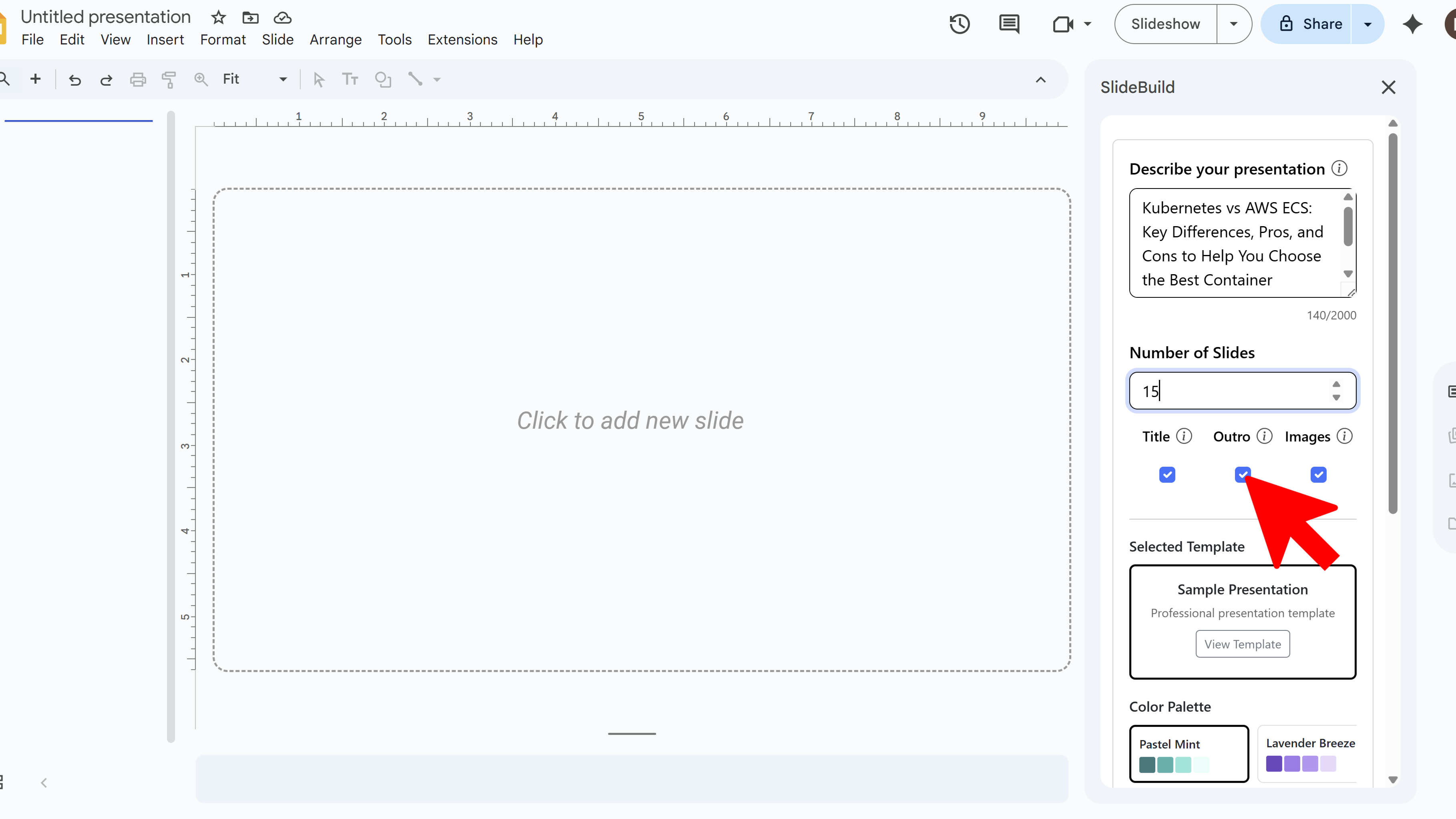
Type in a description of your presentation topic in the description field. SlideBuild uses AI to understand your content and generate appropriate text, structure, and visuals. Be specific about your topic to get the best results. For example, instead of "marketing," write "social media marketing strategy for small businesses."
Enable Title Slide
Toggle the Title Slide option to include a professional title slide at the beginning of your presentation. This slide typically includes your presentation title, subtitle, and presenter information. It's recommended for formal presentations, pitches, and lectures.
Enable Thank You Slide
Toggle the Thank You Slide option to add a closing slide at the end of your presentation. This is particularly useful if you're pitching to investors, as you can add contact information and close strong. For lesson plans or internal presentations, you might choose to skip this.
Enable AI-Generated Images
Toggle AI-Generated Images to have SlideBuild automatically create relevant images for your slides. Enabling this option makes your slides more visually engaging and helps communicate your message more effectively. For example, if you're creating a lesson plan, AI-generated images can make the material more engaging for students.
Create Slides Faster with SlideBuild

Tips for Configuring Settings
- Write clear, detailed descriptions to help the AI understand your content better
- Always enable title slides for external presentations
- Use AI-generated images for educational or marketing content
Common Pitfalls When Configuring Settings
- Vague Descriptions: If your description is too generic, the generated slides may not match your needs. Be specific about your topic and target audience
- Too Many Options Enabled: Enabling all options may create longer presentations than needed. Choose only the features relevant to your presentation type
Related Resources
Try Free
SlideBuild: AI Slides Maker
Create professional Google Slides presentations in minutes using AI. Perfect for business, education, and more.
- AI-powered slide generation
- Customizable templates
- Brand color palettes
- AI-generated images
- One-click slide creation
- Perfect for business and education