Customize Design: Colors & Fonts
Customize your SlideBuild presentation design with color palettes and font combinations. Align slides with your brand identity and theme.
3 min read
Updated 1/26/2026
Making your slides visually consistent with your brand or theme is essential.
This guide will show you
how to customize SlideBuild design by selecting color
palettes and fonts.
- Select Your Color Palette
- Choose Your Font Combination
- Preview Your Selections
- Align with Your Brand Identity
Select Your Color Palette
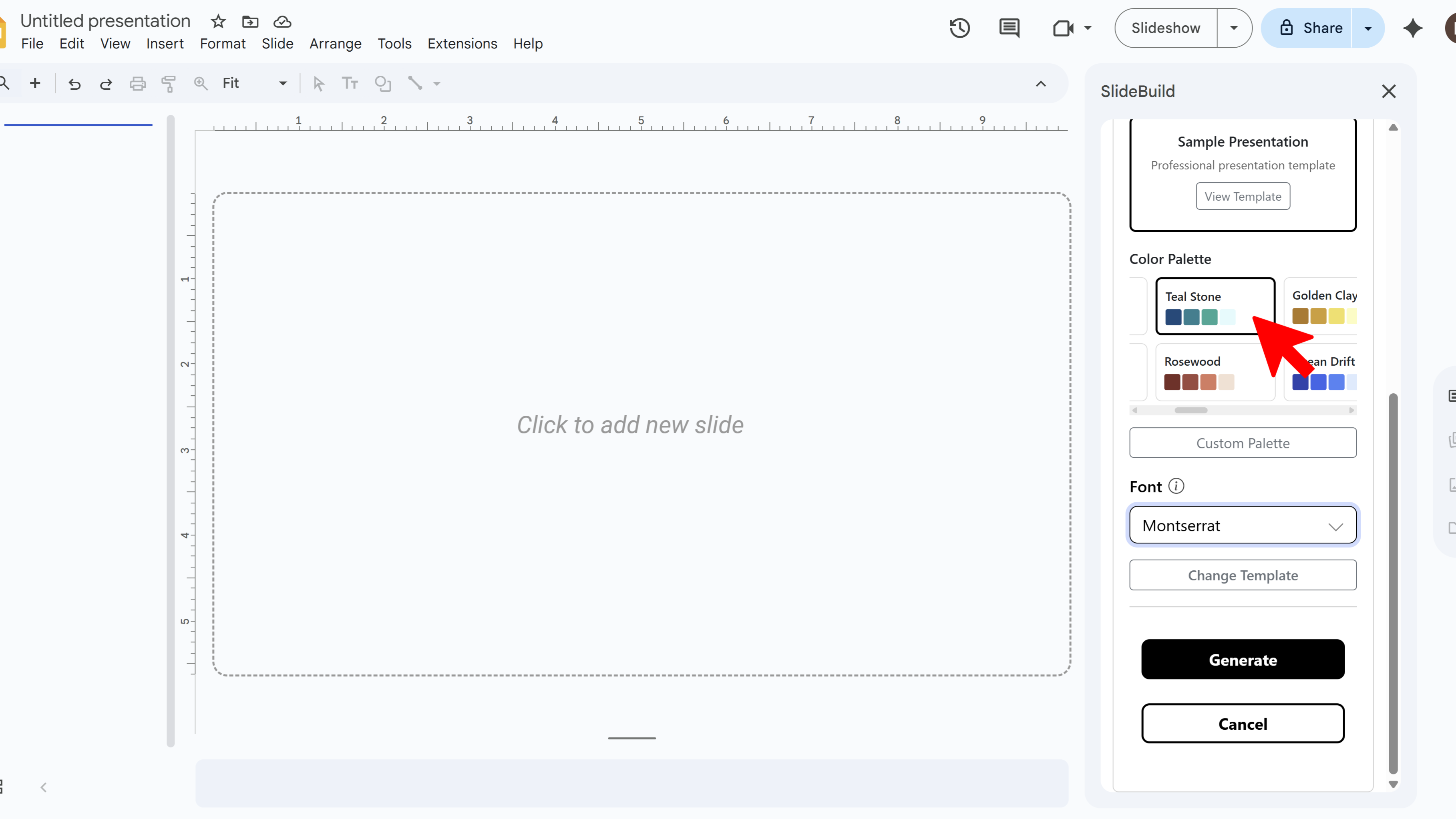
Choose your preferred color palette from SlideBuild's collection. These settings allow you to match your slides with your brand identity or event theme. SlideBuild includes modern and minimal palettes as well as bold and creative options, so you can pick what best represents your message.
Choose Your Font Combination
Select a font combination that complements your color palette and matches your presentation style. SlideBuild offers professional font pairings that ensure readability while maintaining visual appeal. The right font choice can significantly impact how your audience perceives your content.
Preview Your Selections
As you select different palettes and fonts, you'll see previews showing how they'll look together. This helps you make informed design decisions before generating your slides. Take time to experiment with different combinations to find the perfect match.
Align with Your Brand Identity
This customization step is especially useful for businesses that need to align with brand guidelines, making SlideBuild a powerful tool for professional consistency. By matching your company's colors and typography, you ensure every presentation reinforces your brand identity.
Create Slides Faster with SlideBuild

Tips for Customizing Design
- Stick to one color palette per presentation for visual consistency
- Choose high-contrast color combinations for better readability
- Use your company's brand colors if presenting on behalf of an organization
Common Pitfalls When Customizing Design
- Too Many Colors: Using complex palettes can make slides look cluttered. Stick to 2-3 main colors
- Poor Font Pairing: Mixing too many font styles reduces readability. Use SlideBuild's suggested combinations for best results
- Low Contrast: Light text on light backgrounds (or dark on dark) makes slides hard to read. Choose palettes with good contrast
Related Resources
Try Free
SlideBuild: AI Slides Maker
Create professional Google Slides presentations in minutes using AI. Perfect for business, education, and more.
- AI-powered slide generation
- Customizable templates
- Brand color palettes
- AI-generated images
- One-click slide creation
- Perfect for business and education