How to Change Margins in Google Docs
Learn how to change page margins in Google Docs to create the perfect layout for your needs.
1. Open Google Docs
Open the Google Docs document you want to change margins for. If you haven't created a document yet, go to docs.google.com and click on 'Blank' to create a new document.
2. Go to 'File'
You can find this option at the top left corner of your screen.
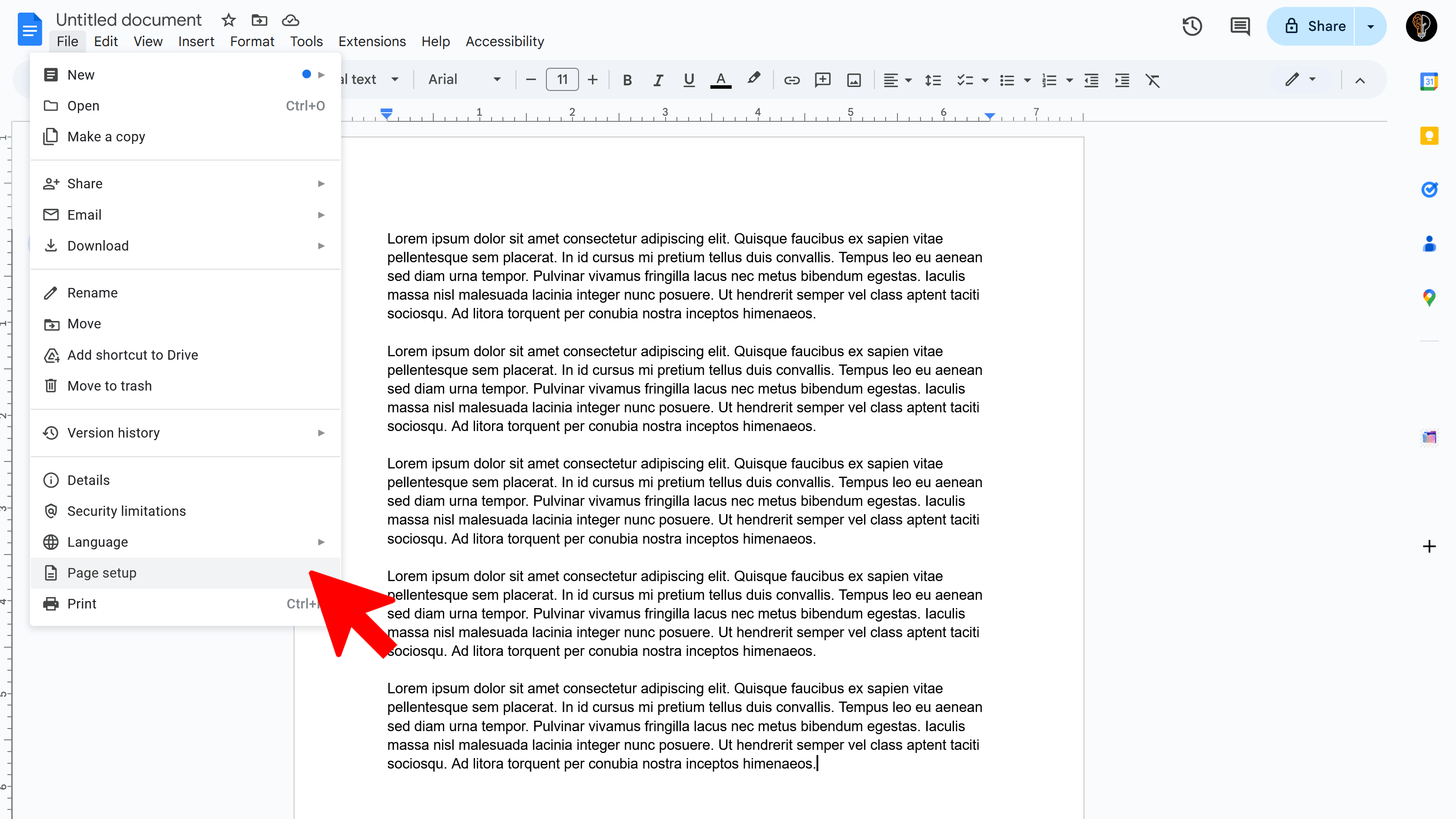
3. Click on 'Page Setup'
This option will be available in the drop-down menu that appears after clicking on 'File'.
4. Adjust Margins
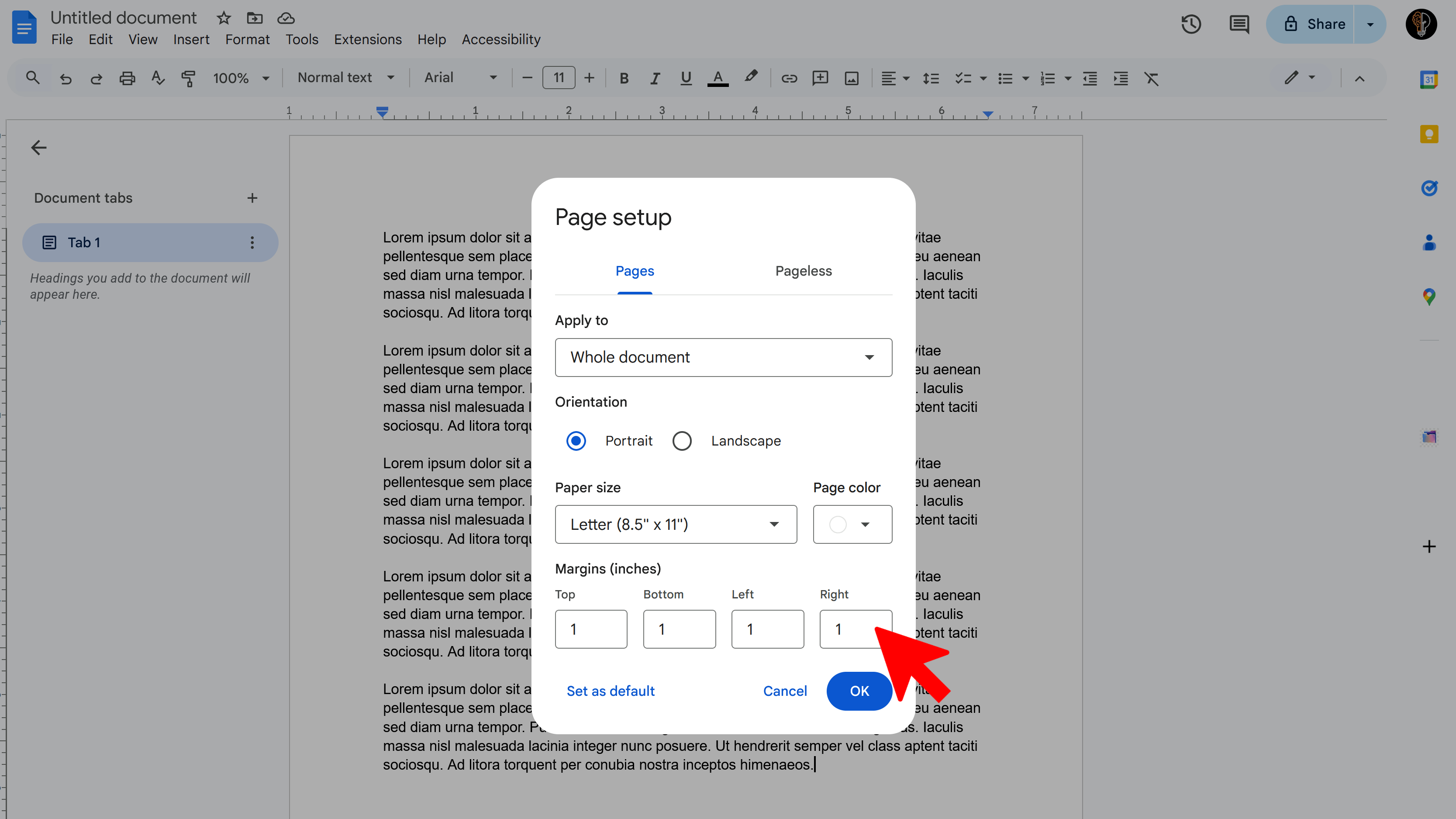
A dialog box will open named 'Page Setup'. Here, you will see options to adjust the margins (top, bottom, left, and right). Type in the margin size you want for each side. The margin size is measured in inches.
5. Click 'OK'
This will apply the changes you made to the margins. Your document will now have the new margin sizes you set.
Tips and Best Practices
- Remember that the margin settings will apply to the entire document. If you want different margins for different pages, you'll need to break your document up into sections.
- If you want the same margin sizes for all your future documents, click on 'Set as default' in the 'Page Setup' dialog box. This way, all your future documents will automatically have the margin sizes you set.
Common Pitfalls to Avoid
- Be careful when setting the margin sizes. If you set the margins too small, your text might get cut off when printing the document.
- Avoid using large margins for academic or professional documents unless necessary as it might lead to an unprofessional appearance.
External Resources
- Google Docs Editor Help CenterDocReader: Text to Speech & Translate
Convert text to speech and translate docs seamlessly. Perfect for accessibility and multilingual content.
- Text to speech conversion
- Downloadable audio files
- Customizable voice options
- Easy-to-use interface
- Enhances accessibility
- Built right into Google Docs