How to Add Correct Answer in Google Forms
Learn how to add correct answers to your Google Forms quizzes. This guide covers setting up answer keys, assigning points, and managing quiz settings.
- Open Google Forms
- Choose the Form
- Select the Question
- Click on Answer Key
- Mark the Correct Answer
- Set the Points for the Question
- Click on Done
Open Google Forms
Open your internet browser, navigate to Google Forms. If you're not already signed into your Google account, do so.
Choose the Form
Click on the form to which you want to add the correct answer.
Select the Question
Click on the question to which you want to add the correct answer.
Click on Answer Key
In the right side of the question, click on 'Answer Key'.
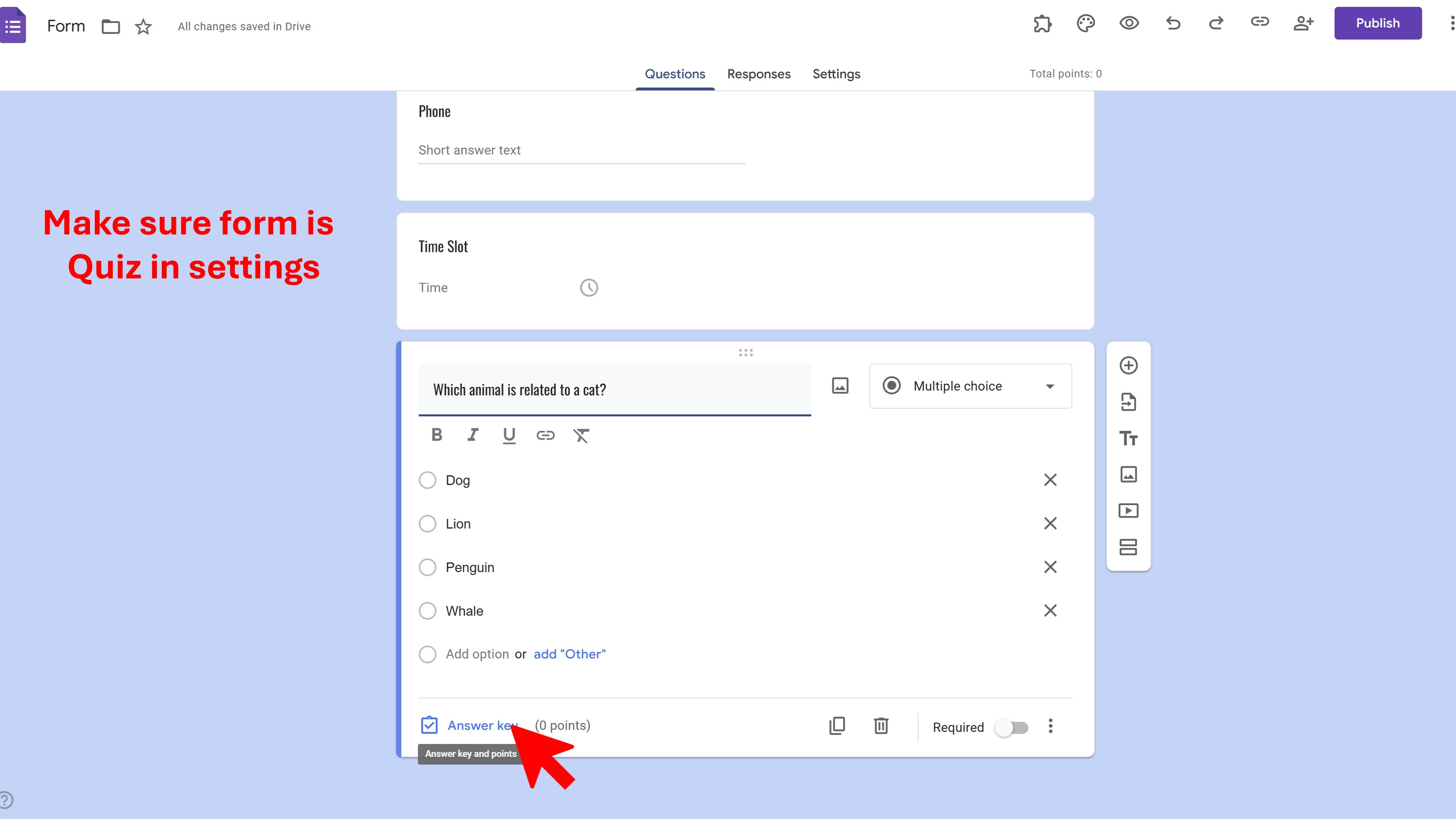
Mark the Correct Answer
You can now mark the correct answer. For multiple choice questions, click on the checkbox or the circle next to the correct choice. For short answer questions, type in the correct answer.
Set the Points for the Question
Choose how many points this question is worth. You can do this by clicking on the 'Answer Key' and typing in the number of points in the box that appears.
Click on Done
After you've marked the correct answer and set the points, click on 'Done'.
Termi: Form Limiter
Automate Google Forms with response limits, choice quotas, and time-based scheduling. Perfect for event registrations and resource bookings.
- Automatic response count limits
- Choice-based quotas (choice eliminator)
- Time-based form scheduling
- Email alerts and notifications
- Real-time progress tracking
- Built right into Google Forms