How to Import Questions into Google Forms
Learn how to import questions into Google Forms from existing forms or via URLs. Also, discover tips, best practices, and common pitfalls to avoid.
- Log into your Google account
- Open Google Drive
- Create a new Google Form
- Import questions into the Form
- Rearrange and edit the imported questions
- Send the form
- Tips and Best Practices
- Common Pitfalls to Avoid
- External Resources
Step 1: Log into your Google account
Begin by logging into your Google account. This is the first step to access Google Forms.
Step 2: Open Google Drive
Once you have logged into your account, open Google Drive by visiting drive.google.com.
Step 3: Create a new Google Form
Click on 'New' on the top left corner of the screen, then scroll down to 'More' and select 'Google Forms'. A new tab will open with a blank Google Form.

Step 4: Import questions into the Form
Click on the 'Import Questions' button located on the right side of the Form. A pop-up window will appear where you can select the form from which you want to import the questions.
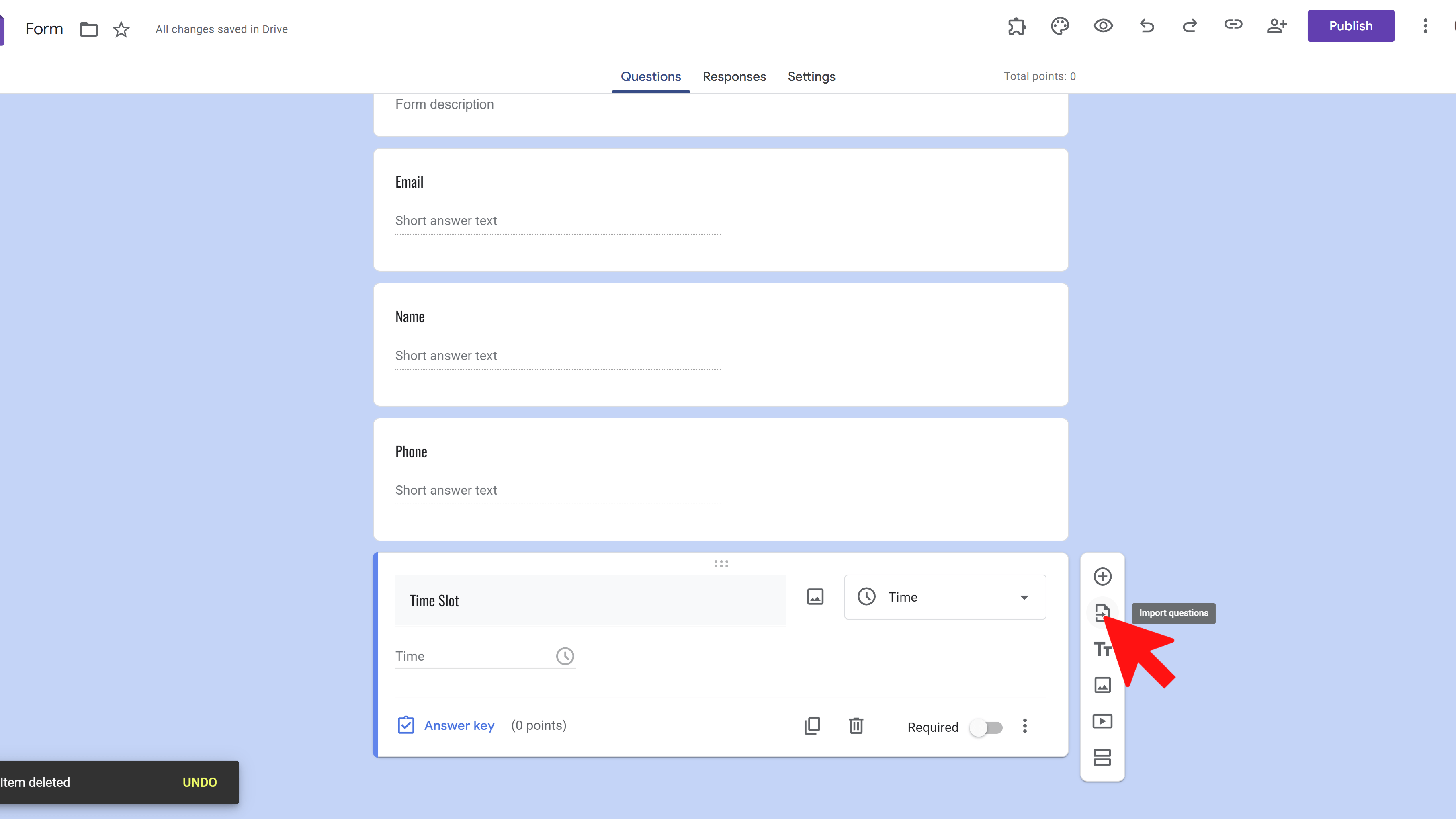
Remember, you can choose forms from your Google Drive or enter the URL of a form. After selecting the form, click on 'Import'. The selected questions will be imported into your new form.
Step 5: Rearrange and edit the imported questions
After importing the questions, you can rearrange or edit them as per your needs.
Step 6: Send the form
Once you are done, click on the 'Send' button on the top right to share the form.
Tips and Best Practices
Make sure you have the necessary permissions to access the form from which you are importing the questions. Always preview your form before sending it out to ensure that everything is in order. Note that you can't import individual questions from a form; you can only import all the questions from a form. Always remember to save your work regularly to avoid any data loss.
Common Pitfalls to Avoid
Avoid copying and pasting questions directly into the form as this can lead to formatting issues. Instead, use the import feature. Don't forget to check the settings of your form after importing questions, as the settings might not be the same as the original form.
External Resources
Here are some additional resources that might be helpful:
Examize: AI Quiz Maker
Create AI quiz questions for Google Forms in minutes. Generate, translate, and enhance quizzes with support for 70+ languages.
- AI-powered question generation
- Support for 70+ languages
- Multiple question types
- Generate from text, files, or URLs
- Auto-grading with feedback
- Built right into Google Forms