How to Make a Personality Quiz on Google Forms
Step-by-step guide on creating engaging personality quizzes using Google Forms.
10 min read
Updated 10/3/2025
Video Guide
- Start a New Form
- Set up Your Quiz
- Add Your Questions
- Create Sections for Different Personalities
- Assign Sections to Answers
- Finish Your Quiz
Start a New Form
Open your web browser and go to Google Drive (drive.google.com). Click on the "+ New" button on the left side of the screen, then hover over "More" and click on "Google Forms."
Set up Your Quiz
Click on the "+ Blank" button to create a new form. Name your quiz by clicking on "Untitled Form" at the top and entering your desired name. Add a brief description of your quiz under the title if you want.
Add Your Questions
Click on the "+ Add Question" button on the right side of the screen to add a new question. Type your question in the box. For example, "What's your favorite color?". Choose "Multiple Choice" or "Checkboxes" as the question type. Add your answer choices in the boxes below, then click on "Done."
Create Sections for Different Personalities
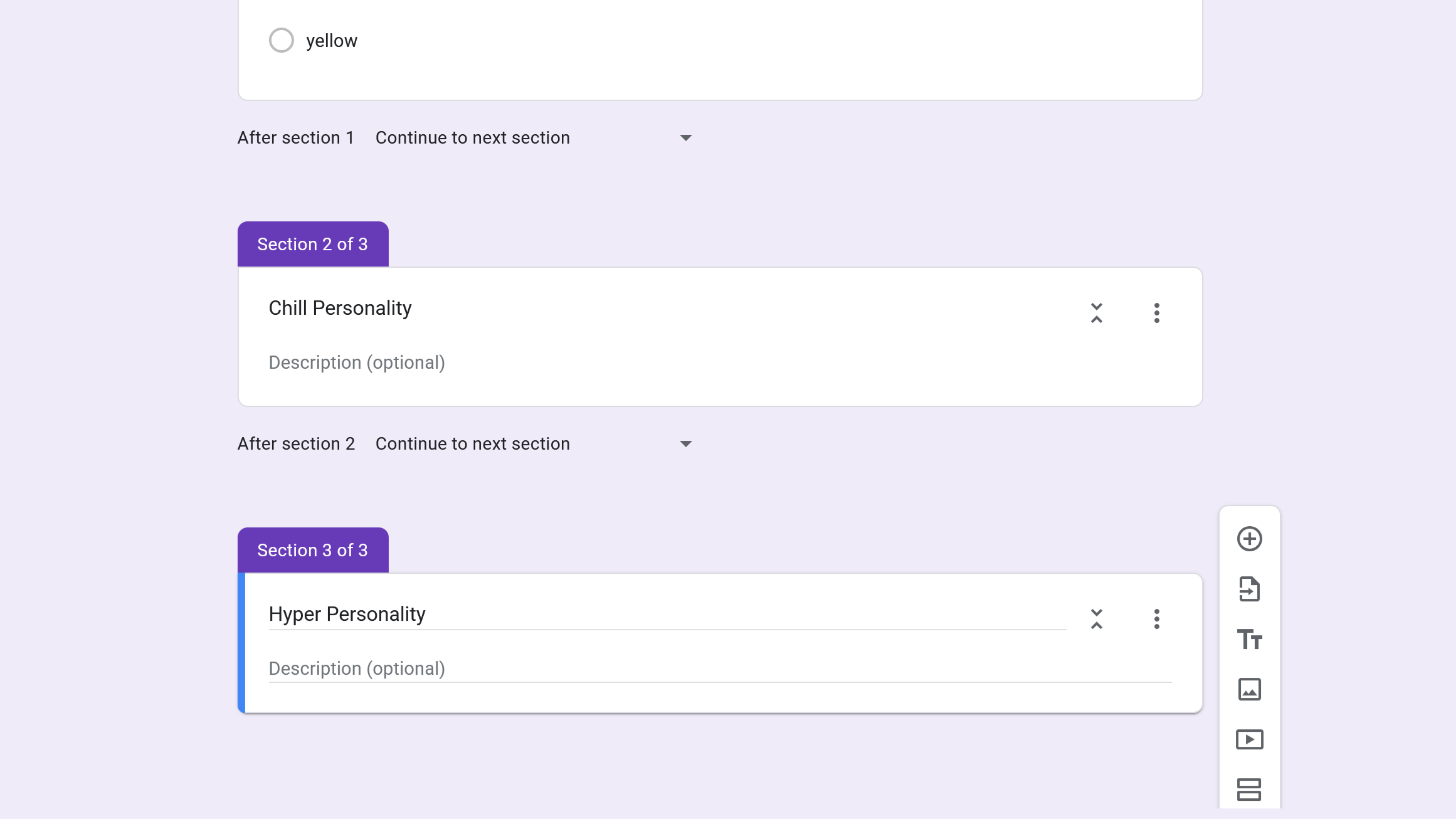
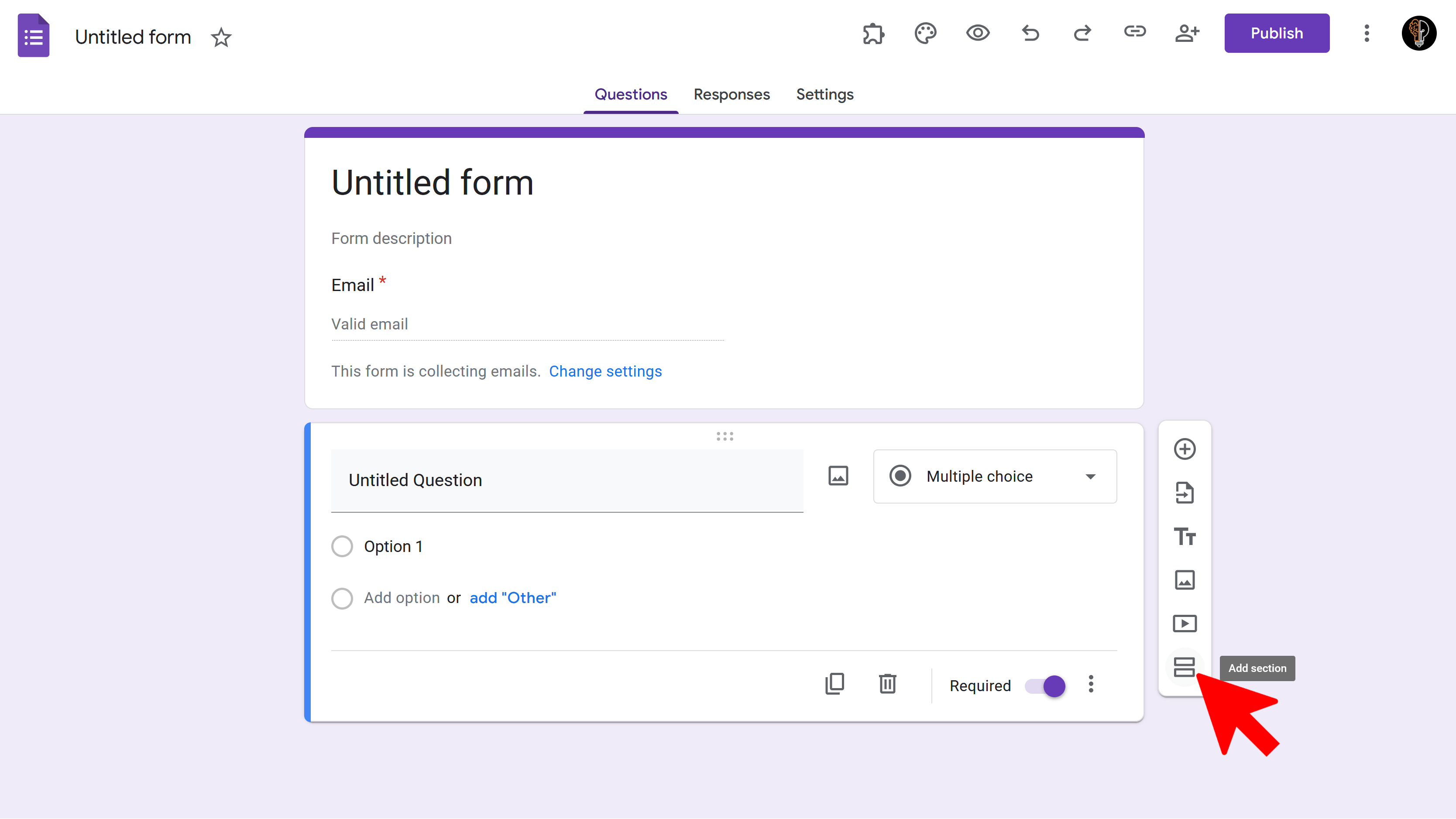
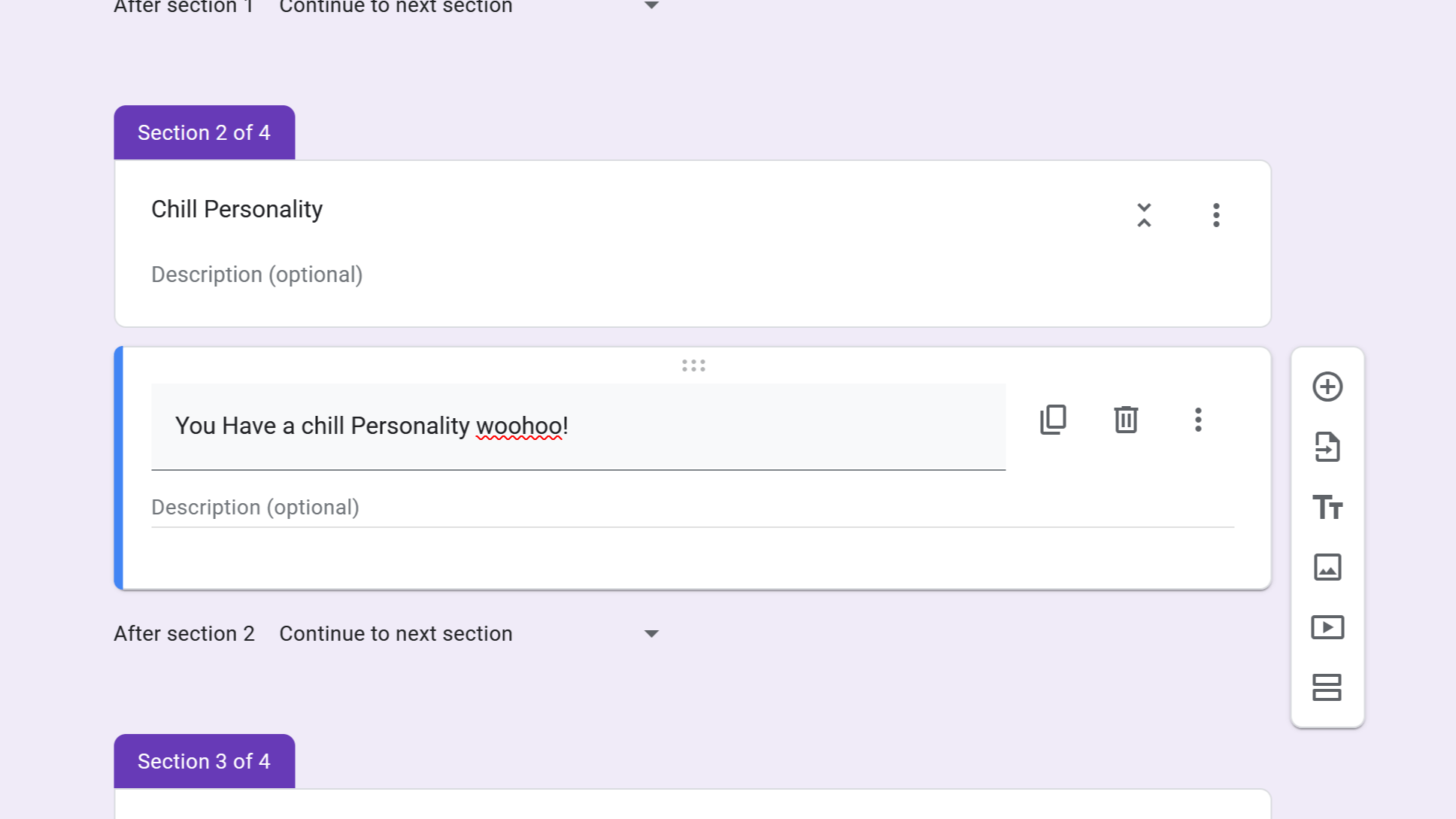
Click on the two squares icon on the right side of the screen to create a new section. In the new section, describe one of the personalities that a quiz-taker could have based on their answers. Repeat this process for each personality type you want to include in your quiz.
Assign Sections to Answers
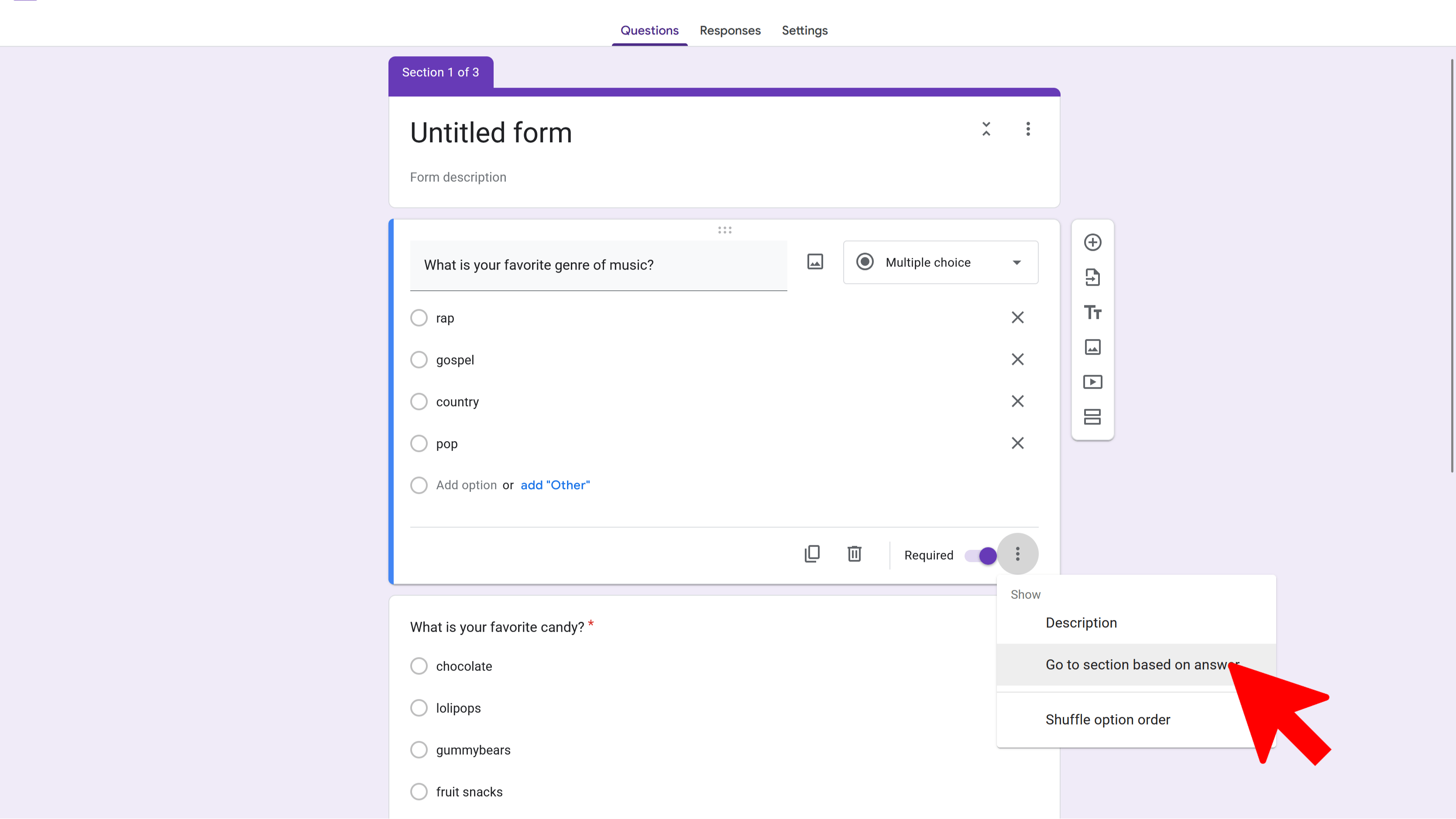
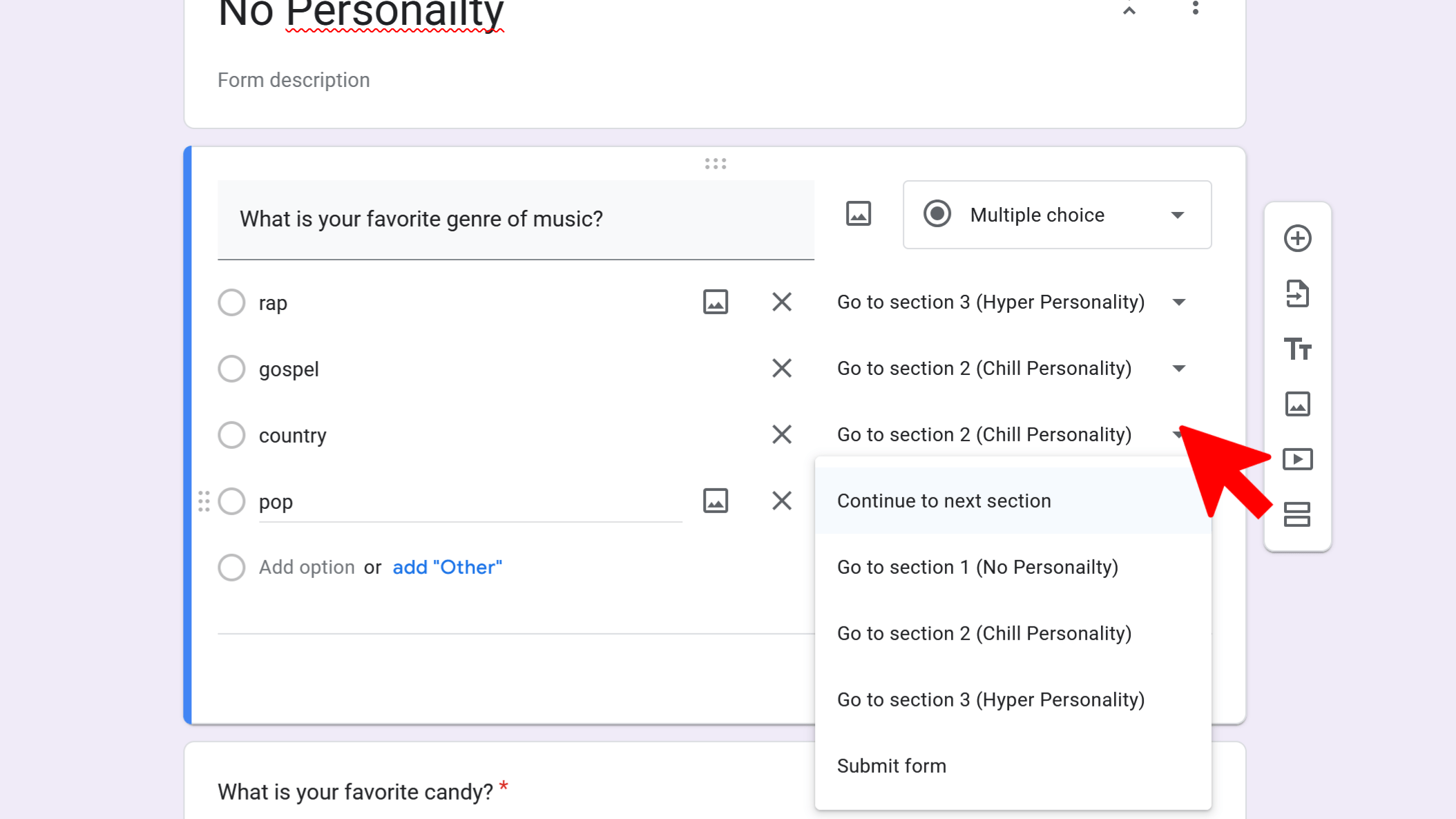
Go back to your questions and click on the three dots in the right bottom corner of each question to see more options. Click on "Go to section based on answer." Now, assign each answer to go to a different section by clicking on the box that says "Continue to next section" and choosing the correct section.
Finish Your Quiz
Add any final touches, such as an introduction or conclusion section. Click on the eye icon in the top right corner to preview your quiz and make sure everything works as expected.
Tips and Best Practices:
Make sure your questions are clear and easy to understand. Try to avoid bias in your questions and answer choices. Use a variety of question types to keep the quiz interesting. Test your quiz before sharing it to make sure there are no glitches or mistakes.
Common Pitfalls to Avoid:
Do not forget to assign a section to each answer. If you forget, the quiz might not work properly. Do not make your quiz too long. People might lose interest and not complete it.
External Resources:
Google Forms Official Help CenterStep-by-step Google Forms guide with pictures
Google Forms Tutorial on Udemy
Google Forms Community on Reddit
Try Free
Termi: Form Limiter
Automate Google Forms with response limits, choice quotas, and time-based scheduling. Perfect for event registrations and resource bookings.
- Automatic response count limits
- Choice-based quotas (choice eliminator)
- Time-based form scheduling
- Email alerts and notifications
- Real-time progress tracking
- Built right into Google Forms