How to Create an Email Template
Create professional email templates for your mail merge campaigns. Learn how to design templates with merge fields, format text, add images, and save templates for reuse in MassyMail.
3 min read
Updated 3/15/2026
- Open the Templates Section
- Create a New Template
- Write Your Subject Line
- Write Your Email Body
- Insert Merge Fields
- Save the Template
Open the Templates Section
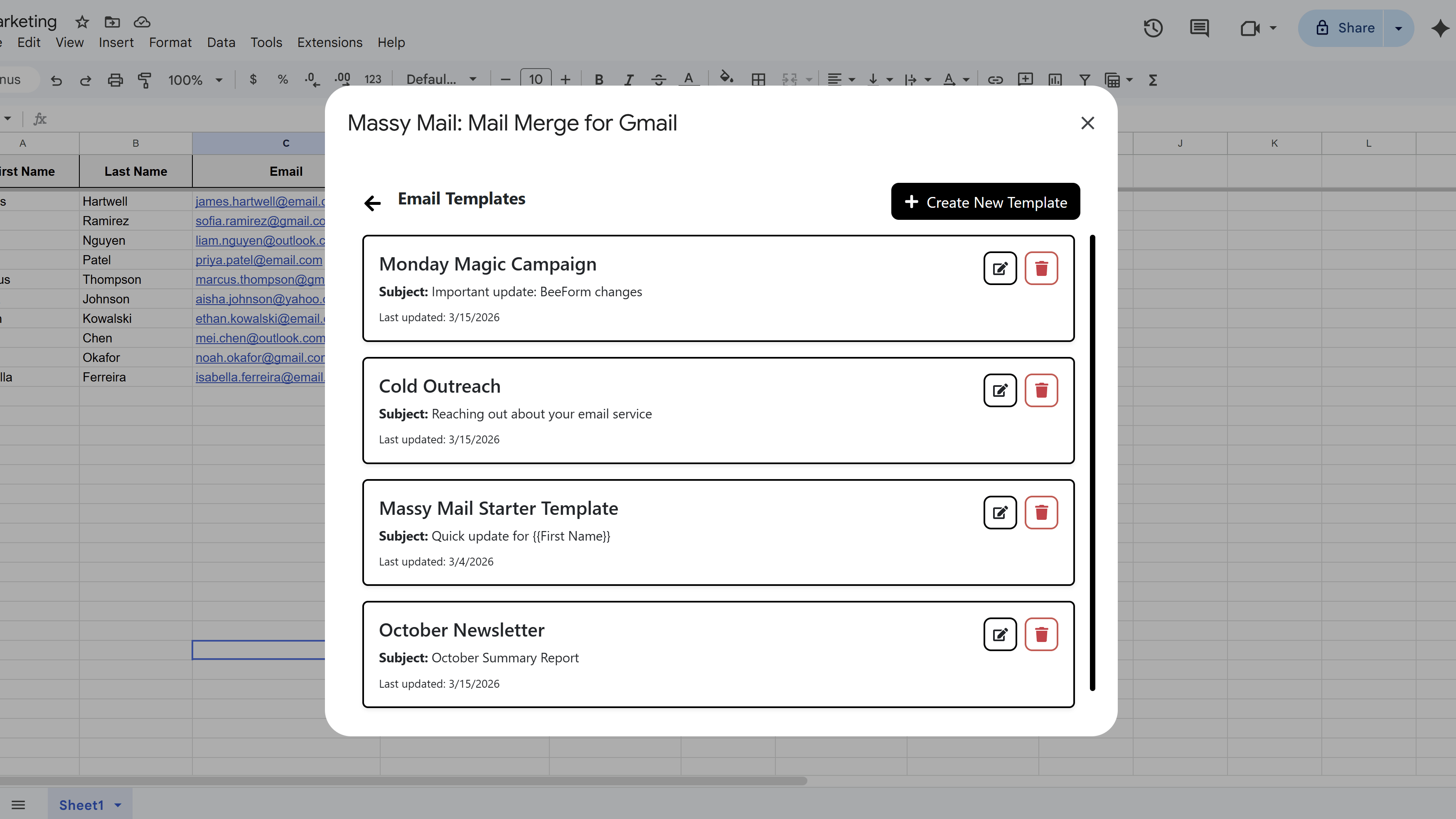
To manage your email templates in MassyMail, open the add-on by clicking Extensions > MassyMail > Open in Google Sheets. Once the sidebar opens, click the Templates tab in the top navigation. This will show you a list of all your saved templates, including the name, subject line, and last updated date for each one.
If this is your first time using MassyMail, a starter template called "Massy Mail Starter Template" will already be here to give you a working example to build from.
Create a New Template
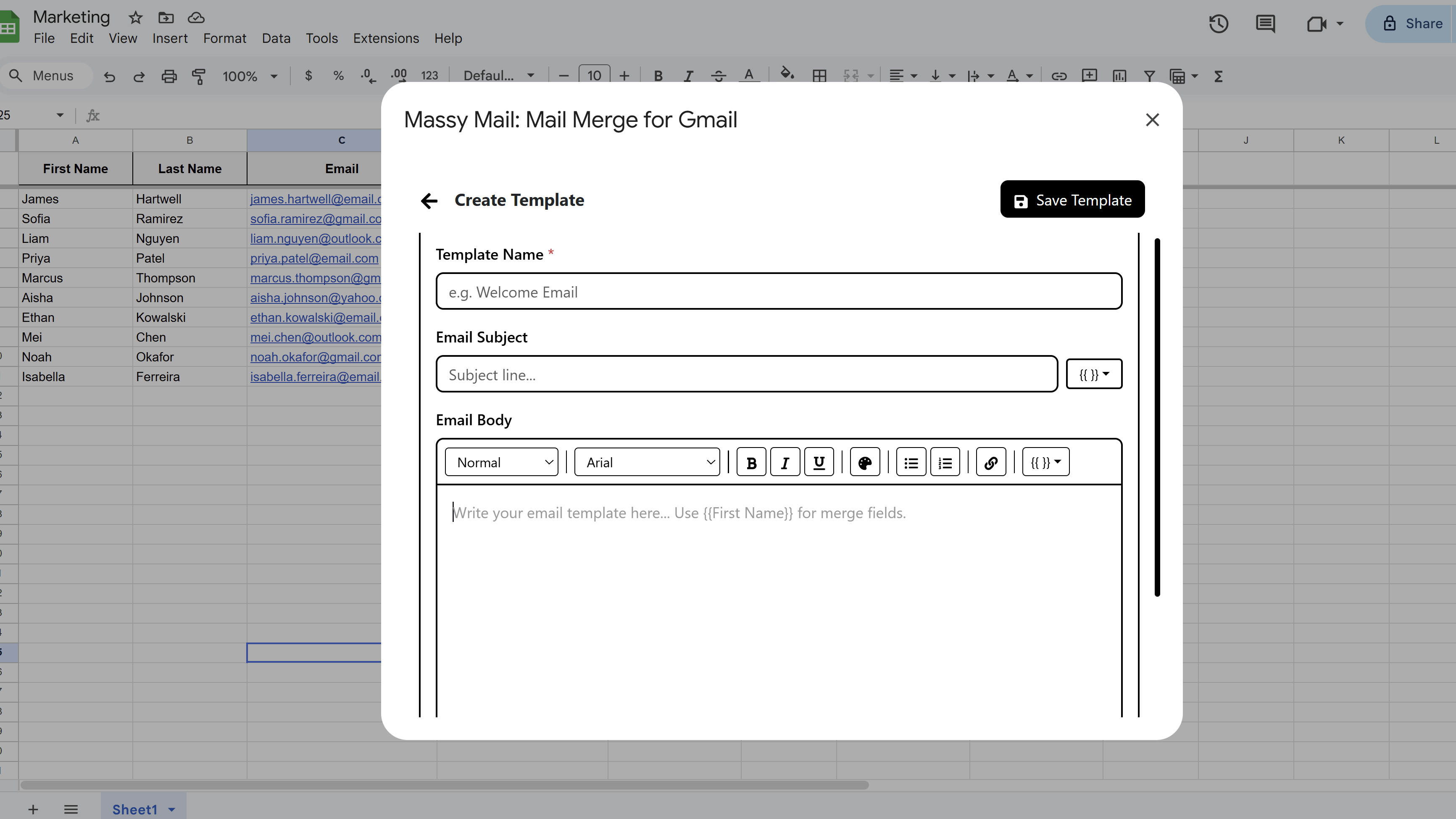
Click the New Template button (or the + icon) in the templates list. This will open the rich template editor where you can write and format your email. Give your template a descriptive Template Name — this is only visible to you and helps you identify it in the dropdown when composing a campaign.
Write Your Subject Line
The Subject field is at the top of the editor. Your subject line is one of the most important parts of your email — it determines whether recipients open it. You can personalize the subject line using merge fields just like the body. For example:
"Hi {{First Name}}, your order #{{Order Number}} has shipped!"
A personalized subject line can significantly improve open rates compared to a generic one.
Write Your Email Body
The body editor in MassyMail is a full rich-text editor powered by Lexical. You can:
- Format text with bold, italic, and underline
- Add headings and paragraphs to structure longer emails
- Create ordered and unordered lists
- Insert and edit hyperlinks
- Change text color and font family
Write your email as you want it to read for a single recipient. You'll use merge fields in the next step to personalize it for each person on your list.
Insert Merge Fields
Merge fields are placeholders that get replaced with real data from your Google Sheet when the email is sent. Click the Merge Fields button in the editor toolbar and select a field from your sheet headers. MassyMail supports two placeholder formats:
{{First Name}}— double curly braces{First Name}— single curly braces
Both formats work identically. The field name must match your sheet's column header exactly (trimmed, case-sensitive). You can place merge fields anywhere in the subject or body.
Save the Template
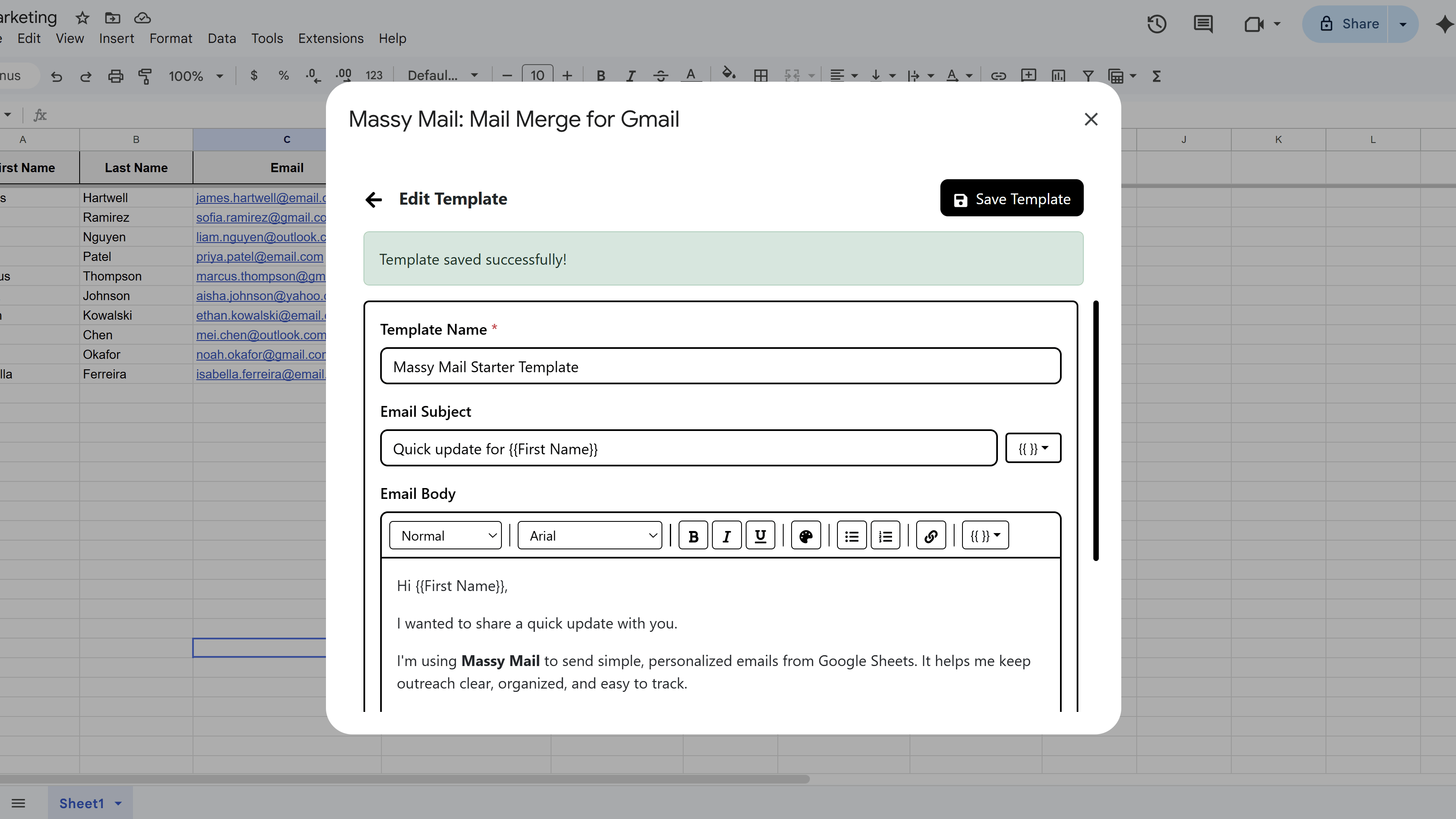
When you're done writing, click Save. MassyMail will validate that the template name, subject, and body are all filled in before saving. Once saved, the template will appear in your templates list and in the campaign workspace dropdown, ready to use in your next campaign.
You can edit or delete any template at any time from the templates list. Deleting a template requires confirmation to prevent accidental removal.
Tips and Best Practices
- Use descriptive template names so you can quickly identify the right one in the campaign dropdown — e.g. "October Newsletter" or "Cold Outreach v2".
- Keep a "base" template for campaigns you send regularly. Duplicate it and tweak the copy for each new campaign instead of starting from scratch.
- Preview your template with different rows in the campaign workspace before sending to make sure merge fields look correct for all recipient types in your list.
Common Pitfalls to Avoid
- Don't leave the template name or subject blank — MassyMail will not save the template without both fields.
- If a merge field in your template doesn't match any column header in your sheet, it will appear unchanged in the sent email (e.g. the recipient will see
{{Company}}literally). Double-check spelling and spacing.
For a complete walkthrough of Gmail mail merge — including templates, scheduling, and tracking — see our Gmail Mail Merge: The Complete Guide. New to MassyMail? Install it free from the Google Workspace Marketplace.
Try Free
MassyMail: Mail Merge for Gmail
Send personalized bulk email campaigns directly from Gmail using your Google Sheets data. Schedule campaigns, track opens and clicks, and manage templates without leaving Google Workspace.
- Send up to 1,500 emails/day
- Merge fields & personalization
- Scheduled email campaigns
- Email open & click tracking
- Reusable email templates
- Built right into Google Sheets