How to Track Link Clicks in Gmail
Track link clicks in your Gmail campaigns to measure engagement. Learn how to enable click tracking, how it works behind the scenes, and how to view click data in your spreadsheet.
3 min read
Updated 3/15/2026
- What Is Email Click Tracking?
- Enable Click Tracking in MassyMail
- How Click Tracking Works
- View Click Tracking Results in Your Sheet
What Is Email Click Tracking?
Click tracking records when a recipient clicks a link in your email. It lets you know not only that your email was opened, but that the recipient was engaged enough to take action - whether that's visiting your website, clicking a call-to-action button, or following up on a link you shared.
Click-through rate (CTR) is often considered a more reliable engagement signal than open rate, since it requires deliberate action from the recipient. With MassyMail, click tracking is built directly into the campaign sending flow.
Enable Click Tracking in MassyMail
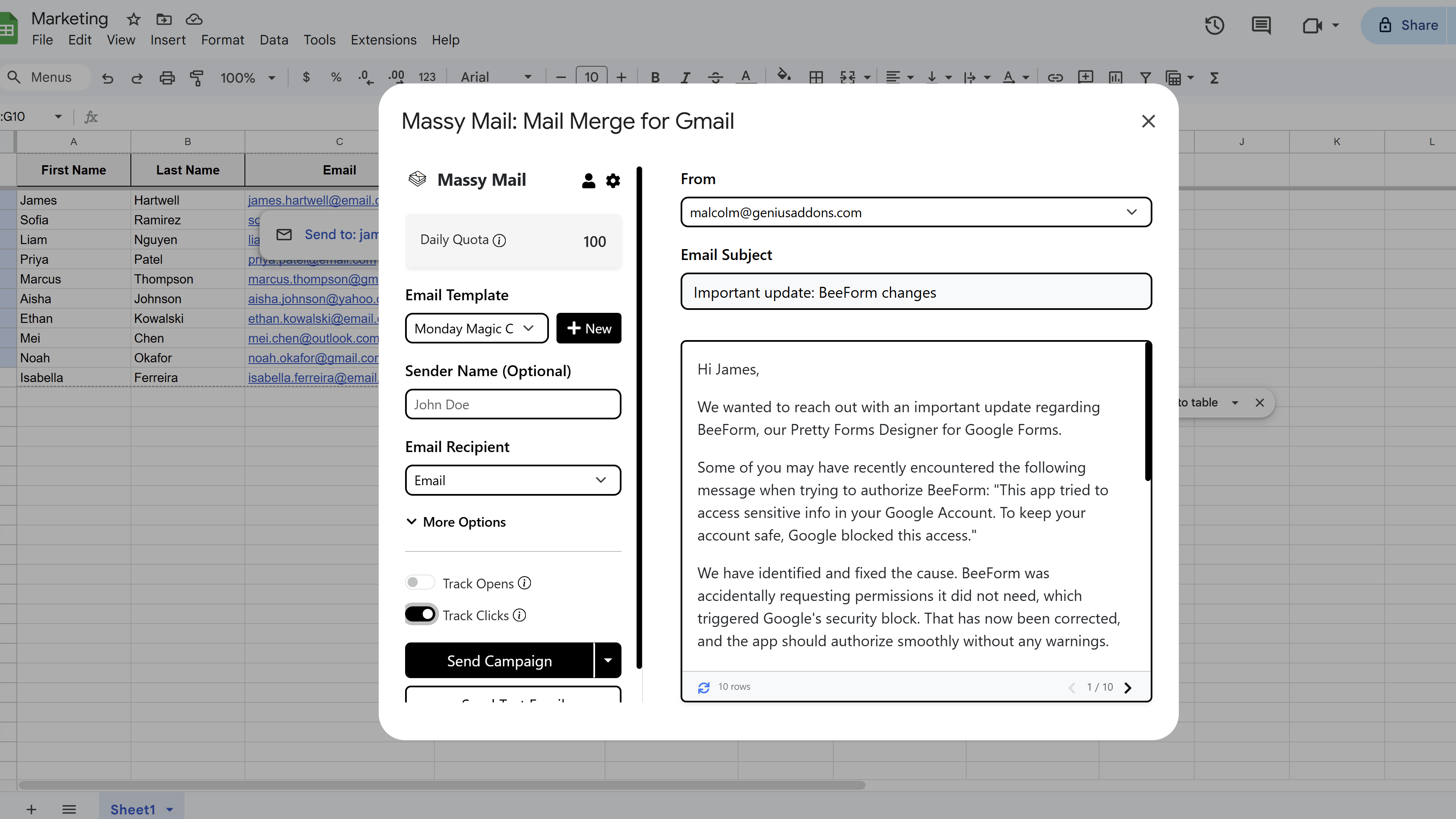
In the MassyMail campaign workspace, look for the Tracking section in the left configuration panel. Toggle on Track Link Clicks.
If you haven't previously granted the required tracking permissions, MassyMail will prompt you to complete a consent flow before the toggle takes effect. This is a one-time setup. Once enabled, MassyMail will automatically add a Clicked column to your Google Sheet to record click timestamps.
How Click Tracking Works
When you send a campaign with click tracking enabled, MassyMail rewrites all the hyperlinks in your email body before sending. Each link is replaced with a tracking redirect URL that:
- Contains an encoded, HMAC-signed payload identifying the recipient, their row number, the original link destination, the send time, and your sheet ID.
- When the recipient clicks the link, their browser first hits MassyMail's tracking endpoint.
- The endpoint verifies the payload, records the click event in your Google Sheet, and immediately redirects the recipient to the original destination URL.
The redirect happens so quickly that the recipient experiences no noticeable delay. From their perspective, the link works exactly as normal.
View Click Tracking Results in Your Sheet
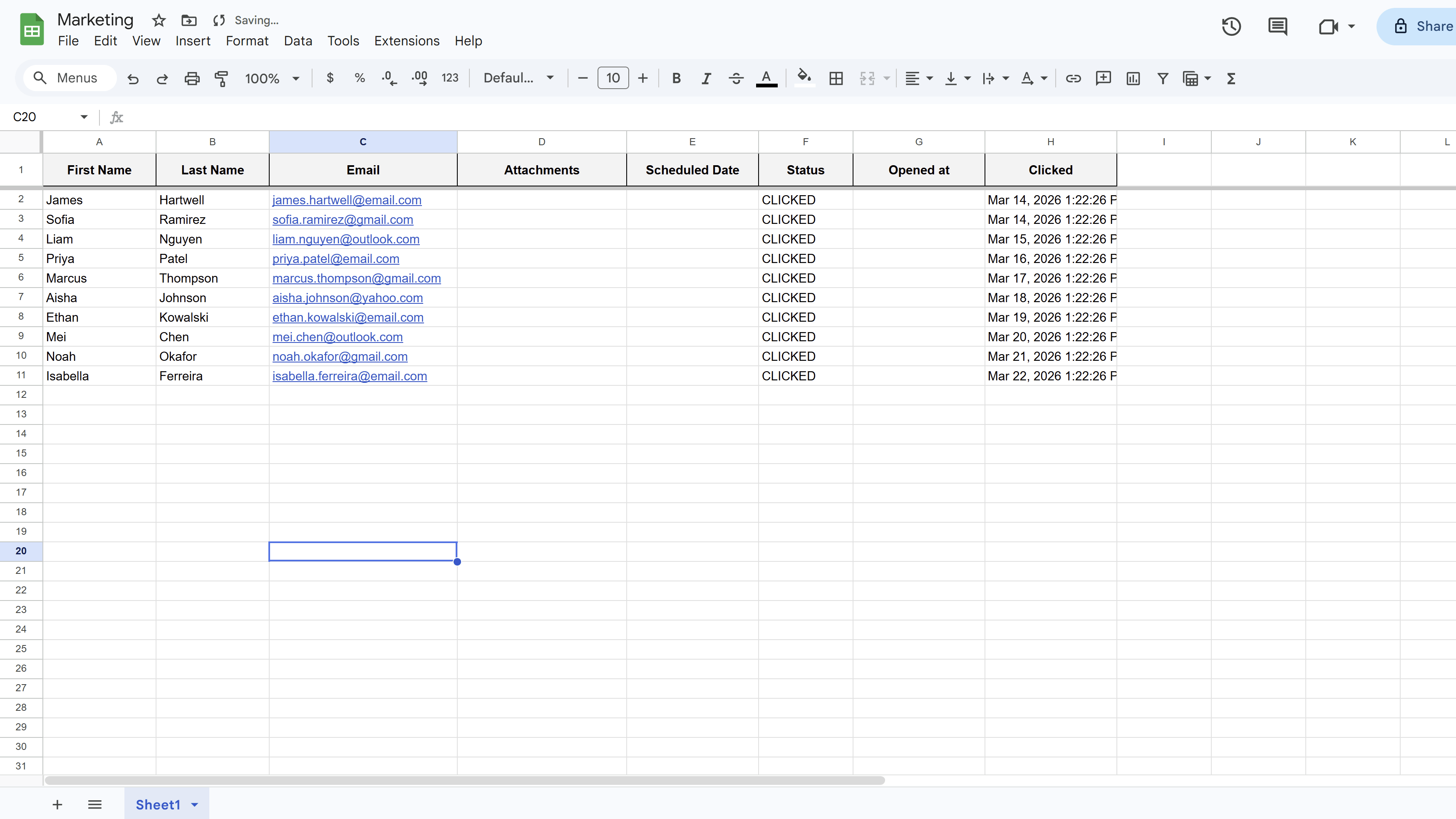
As recipients click links in your emails, the Clicked column in your Google Sheet will populate with the timestamp of the first click. The Status column for those rows will update to CLICKED.
Because CLICKED is a terminal status, MassyMail will skip those rows in any future scheduled batch — so you won't accidentally re-send to someone who has already engaged.
You can use Google Sheets to segment your list after a campaign — for example, filter for rows with "Status = SENT" and "Clicked is blank" to identify who opened but didn't click, and craft a targeted follow-up for that group.
Tips and Best Practices
- Include a single, clear call-to-action link in each email - emails with multiple competing links often have lower click rates than those with one focused CTA.
- Use meaningful anchor text for your links ("View your proposal" performs better than "Click here").
- After a campaign, use click data to prioritize follow-ups - recipients who clicked are your warmest leads.
Common Pitfalls to Avoid
- Don't delete or rename the "Clicked" column while a campaign is running - the tracking endpoint writes to it and it must stay in place.
- Click tracking rewrites all links, including unsubscribe links, social media links, and image links. Test your email carefully to make sure all redirects work as expected.
For a complete walkthrough of Gmail mail merge - including templates, scheduling, and tracking - see our Gmail Mail Merge: The Complete Guide. New to MassyMail? Install it free from the Google Workspace Marketplace.
Try Free
MassyMail: Mail Merge for Gmail
Send personalized bulk email campaigns directly from Gmail using your Google Sheets data. Schedule campaigns, track opens and clicks, and manage templates without leaving Google Workspace.
- Send up to 1,500 emails/day
- Merge fields & personalization
- Scheduled email campaigns
- Email open & click tracking
- Reusable email templates
- Built right into Google Sheets