How to Schedule an Email Campaign
Schedule your mail merge campaigns to send over multiple days. Learn how to batch your sends, set delivery times, stay within Gmail's daily limits, and monitor scheduled campaigns.
4 min read
Updated 3/15/2026
- When Should You Schedule a Campaign?
- Set Up Your Campaign First
- Open the Schedule Settings
- Set Your Batch Size and Send Time
- Confirm and Start the Schedule
- Monitor and Cancel a Scheduled Campaign
When Should You Schedule a Campaign?
Gmail has a daily sending limit — free Gmail accounts can send up to 500 emails per day, and Google Workspace accounts can send up to 1,500 per day. If your recipient list is larger than your daily limit, you can't send everything at once. That's where MassyMail's scheduled campaigns come in.
Scheduling also lets you control when your emails go out. For example, you might want to send 200 emails per day, every morning at 9am, over the course of a week — ensuring steady, consistent delivery without hitting Gmail's limits or flooding recipients all at once.
Set Up Your Campaign First
Before scheduling, configure your campaign exactly as you would for an immediate send:
- Select your email template from the dropdown
- Set the recipient column
- Configure sender name, reply-to, CC/BCC if needed
- Enable open/click tracking if desired
Send a test email to yourself first to confirm everything looks correct. Once you're satisfied, proceed to the schedule settings.
Open the Schedule Settings
In the MassyMail campaign workspace, look for the Schedule option in the campaign actions area. Clicking it will open the schedule configuration modal where you can define how many emails to send per day and at what time.
Set Your Batch Size and Send Time
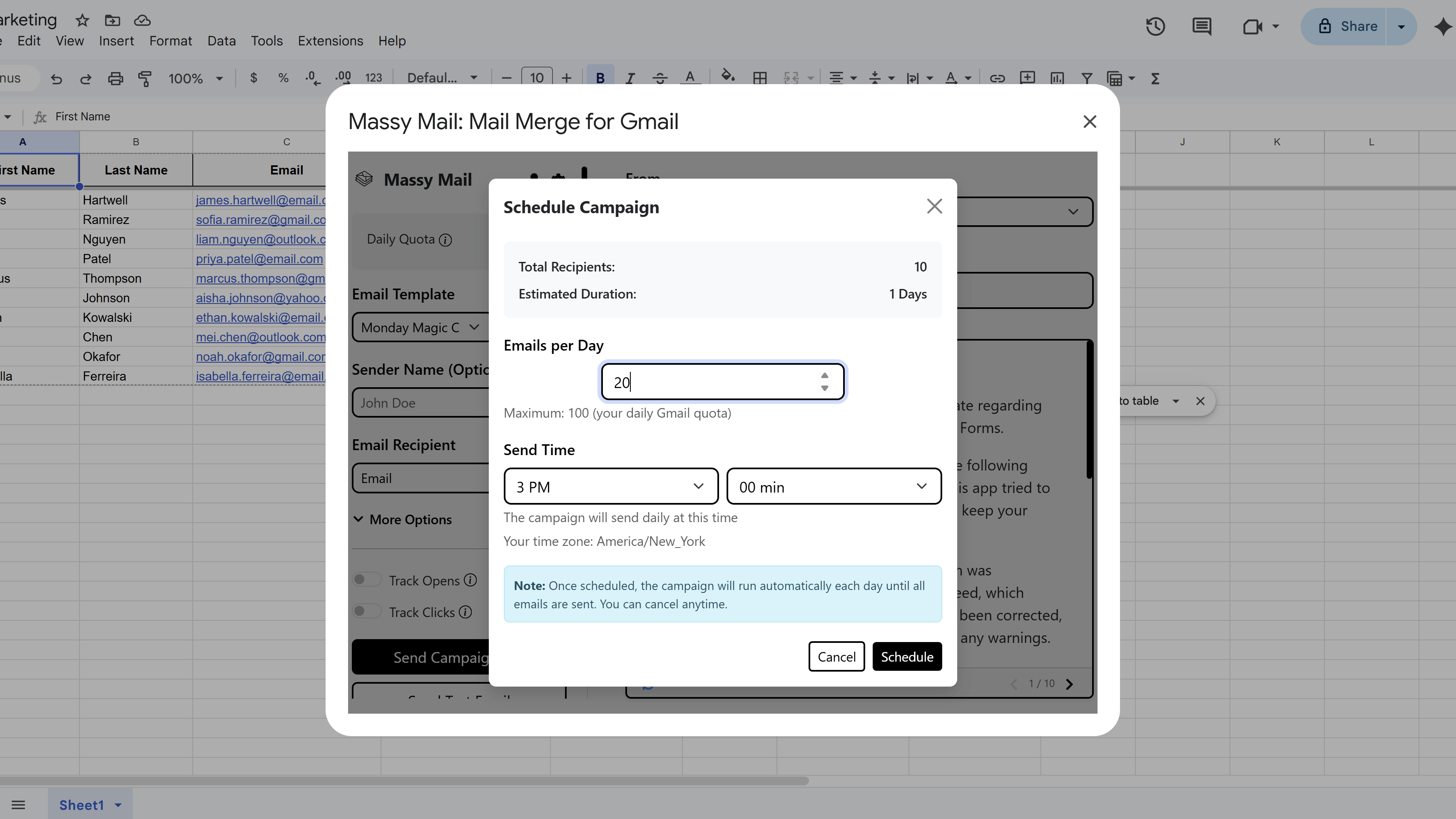
In the schedule modal, configure two key settings:
- Emails per day — the number of emails to send in each daily batch. Set this to a value at or below your Gmail daily limit. For example, if you have 900 recipients and a 1,500/day limit, you could send all 900 in one day — or split to 300 per day for a 3-day drip.
- Send hour (0–23) — the hour of day to trigger the batch, in your local time. For example,
9means 9:00 AM. This creates a daily Apps Script trigger that fires at approximately that hour.
MassyMail will calculate how many days the campaign will take to complete based on your total recipients and your chosen batch size.
Confirm and Start the Schedule
Once you've configured your batch size and send hour, click Create Schedule. MassyMail will:
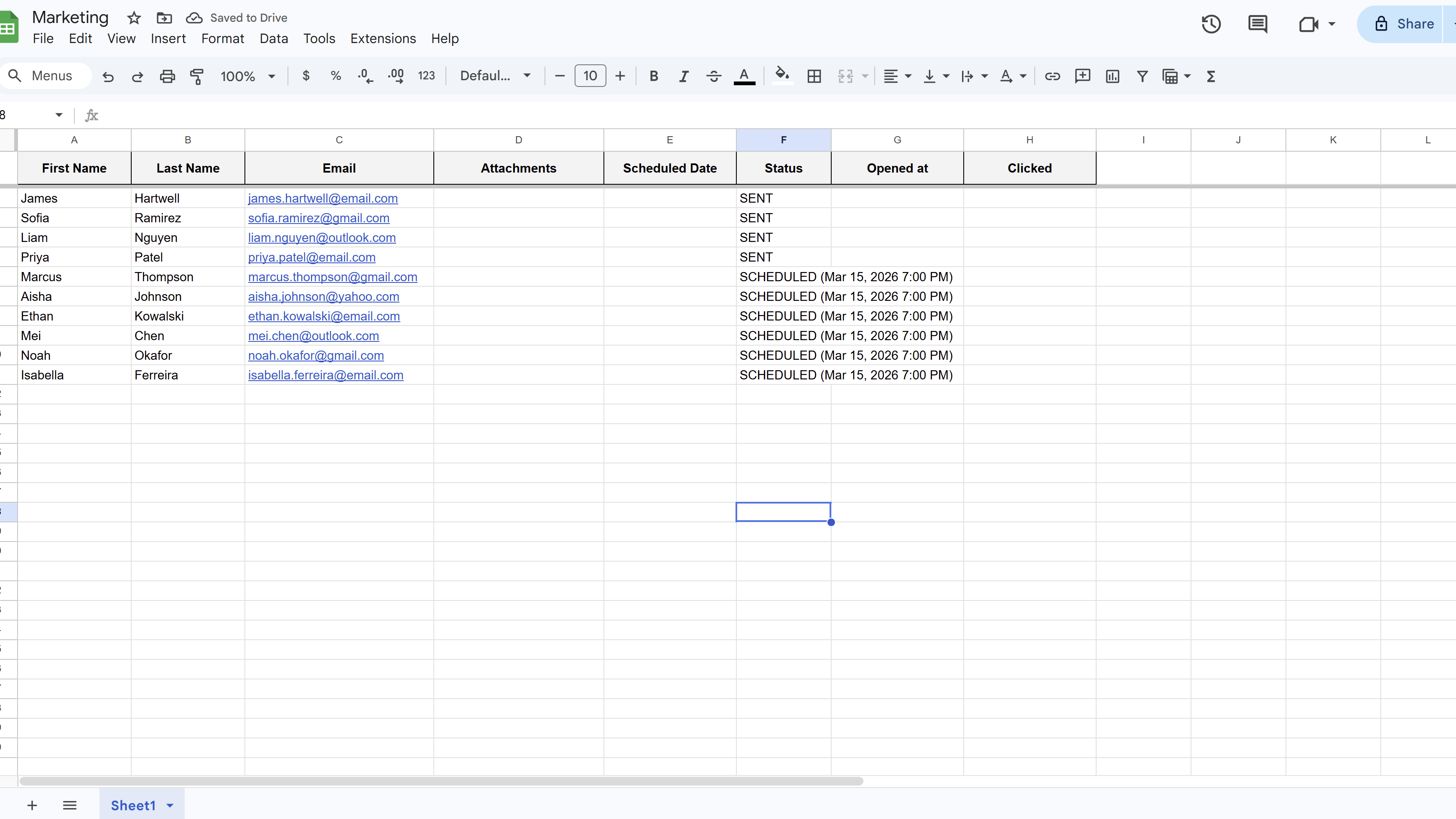
- Mark all eligible recipient rows in your sheet with a
SCHEDULED (date)status in the Status column. - Create a recurring daily Apps Script trigger to process the next batch at your chosen hour.
- Start the first batch immediately (or at the next trigger time, depending on the time of day).
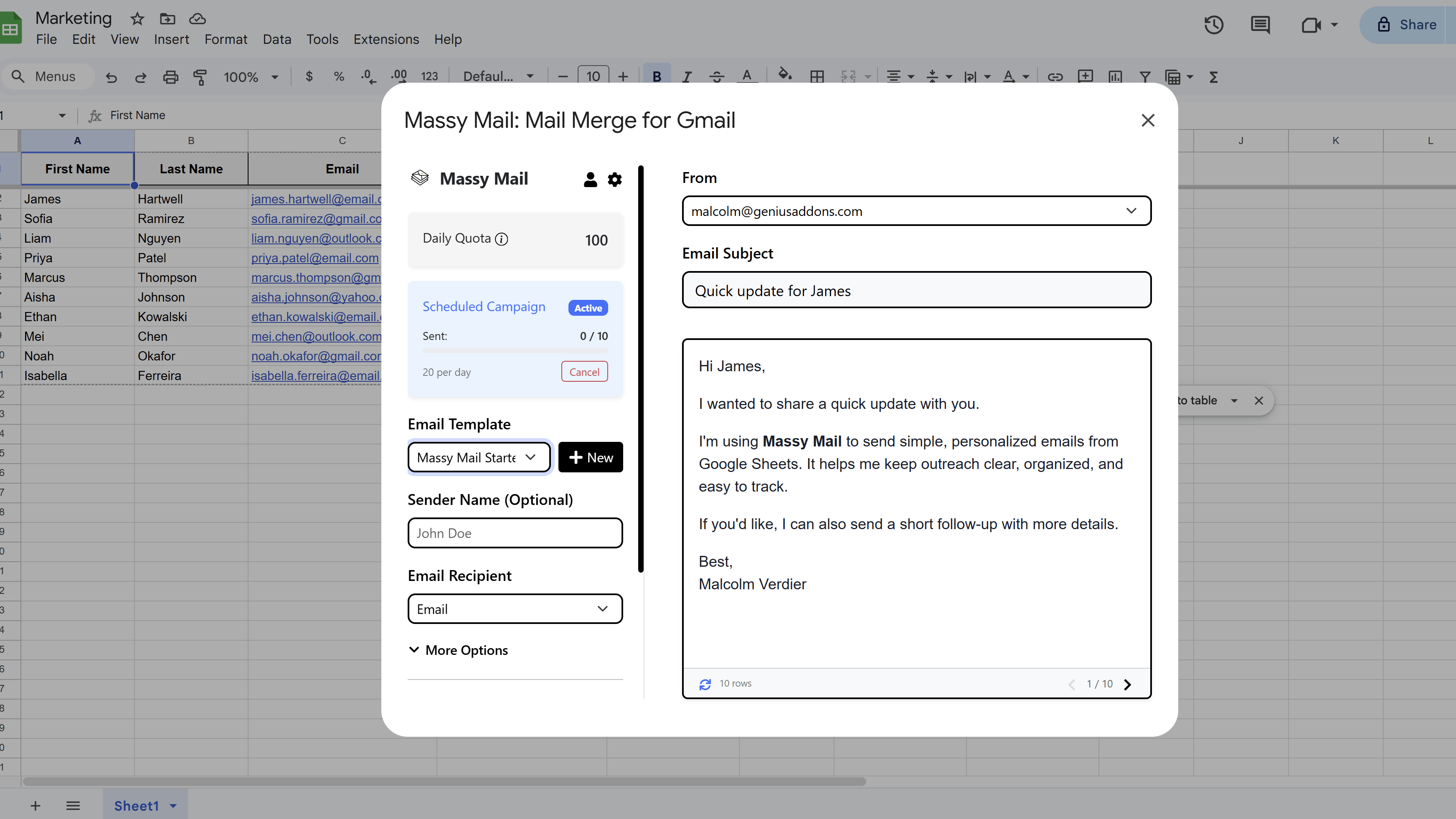
You'll see a summary card in the campaign workspace showing the active schedule's status, total recipients, remaining recipients, and the next send time.
Monitor and Cancel a Scheduled Campaign
While a scheduled campaign is running, the campaign workspace shows an Active Schedule summary with a live count of sent, remaining, and scheduled emails. Each day when the trigger fires, the next batch is processed and Status column values are updated to SENT.
To cancel an active scheduled campaign, click Cancel Schedule in the active schedule card. This will remove the Apps Script trigger and stop any future batches from being processed. Recipients that have already been sent to will retain their SENT status; remaining rows will keep their SCHEDULED status unless you manually clear them.
Tips and Best Practices
- Set your batch size conservatively — leave a buffer below your Gmail limit to account for other emails you send in your normal day-to-day use.
- Schedule campaigns to send during business hours in your recipients' time zone for better open rates.
- Don't edit your sheet's column structure while a scheduled campaign is in progress — doing so may affect how future batches pick up data.
Common Pitfalls to Avoid
- Don't start a second campaign from the same sheet while one is already scheduled — MassyMail uses the sheet's Status column to track progress and a second campaign will interfere with it.
- If you cancel and want to restart, clear the SCHEDULED status values from any unsent rows in your sheet first.
For a complete walkthrough of Gmail mail merge — including templates, scheduling, and tracking — see our Gmail Mail Merge: The Complete Guide. New to MassyMail? Install it free from the Google Workspace Marketplace.
Try Free
MassyMail: Mail Merge for Gmail
Send personalized bulk email campaigns directly from Gmail using your Google Sheets data. Schedule campaigns, track opens and clicks, and manage templates without leaving Google Workspace.
- Send up to 1,500 emails/day
- Merge fields & personalization
- Scheduled email campaigns
- Email open & click tracking
- Reusable email templates
- Built right into Google Sheets