How to Track Email Opens in Gmail
Enable open tracking in your Gmail mail merge campaigns. Learn how email open tracking works, how to view results in your spreadsheet, and understand recipient engagement metrics.
3 min read
Updated 3/15/2026
- What Is Email Open Tracking?
- Enable Open Tracking in MassyMail
- How Open Tracking Works
- View Open Tracking Results in Your Sheet
What Is Email Open Tracking?
Email open tracking tells you when a recipient opens an email you sent. When enabled, each email is embedded with a tiny, invisible 1×1 pixel image hosted on a tracking server. When the recipient's email client loads the image (which happens automatically when they open the email), the tracking server records the event — capturing the time of the open and identifying which recipient it was.
Open tracking is one of the most valuable metrics in email marketing and outreach. It tells you whether your subject lines are compelling, which recipients are engaged, and whether your campaign is reaching people at all.
Enable Open Tracking in MassyMail
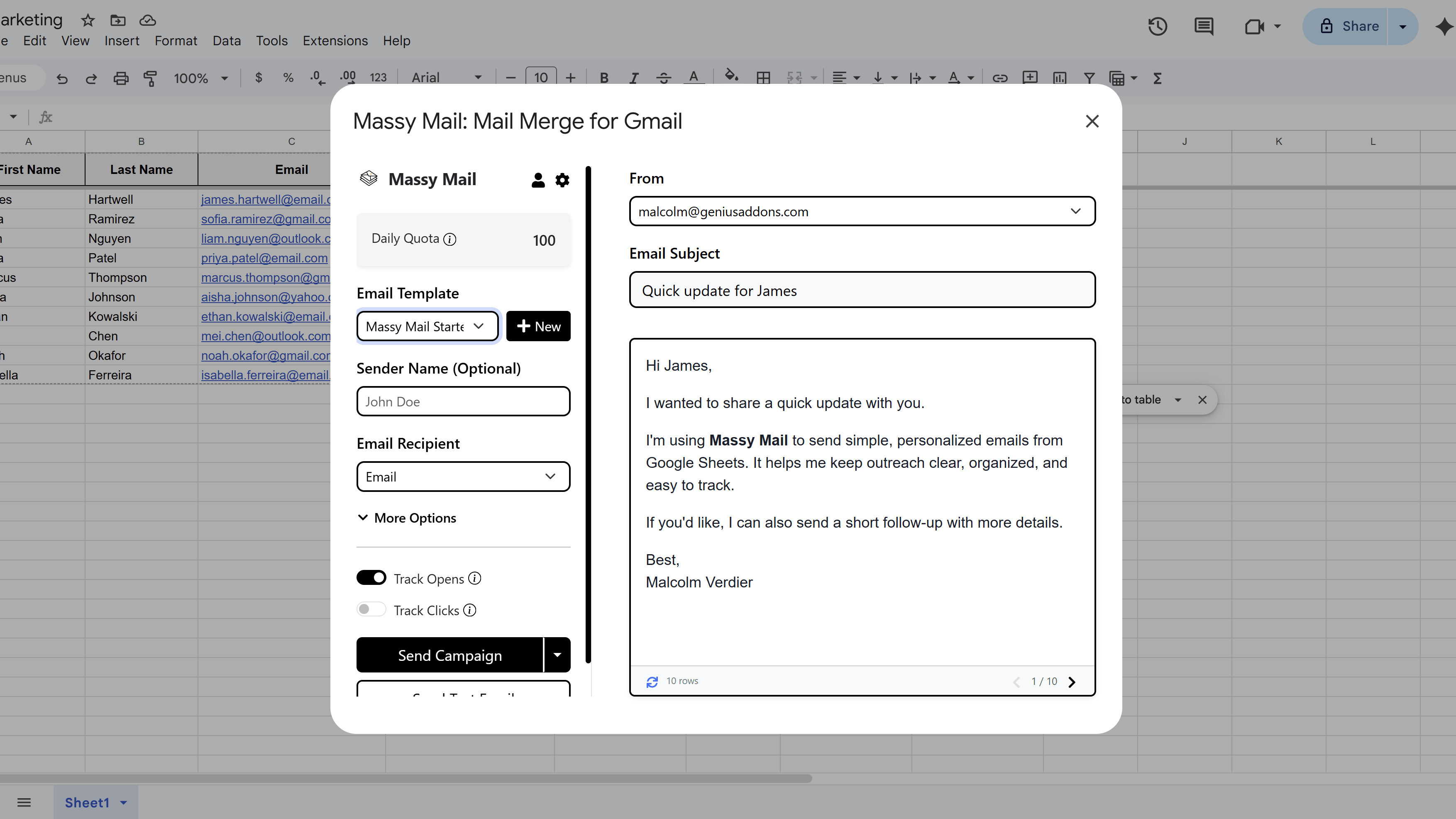
In the MassyMail campaign workspace, look for the Tracking options in the campaign configuration panel. Toggle on Track Email Opens.
If this is your first time enabling tracking, MassyMail may prompt you to grant additional permissions or complete a consent flow. Follow the prompt and refresh the add-on to complete the setup. This is a one-time step.
MassyMail will also automatically add an Opened at column to your Google Sheet if one doesn't already exist — this is where open timestamps will be recorded.
How Open Tracking Works
When you send a campaign with open tracking enabled, MassyMail:
- Resolves all merge fields in each email as normal.
- Appends a tiny (invisible) tracking pixel image to the end of each email body.
- The pixel's URL contains an encoded, HMAC-signed payload with the recipient's email address, their row number, your sheet ID, and the send time.
When the recipient opens the email and their mail client loads images, the pixel fires a request to MassyMail's tracking endpoint. The endpoint decodes and verifies the payload, then writes the open timestamp back to the corresponding row in your Google Sheet.
Open tracking works with most email clients. However, some clients (like Apple Mail with Mail Privacy Protection enabled) may pre-load images automatically, which can result in opens being recorded even if the recipient hasn't actually read the email.
View Open Tracking Results in Your Sheet
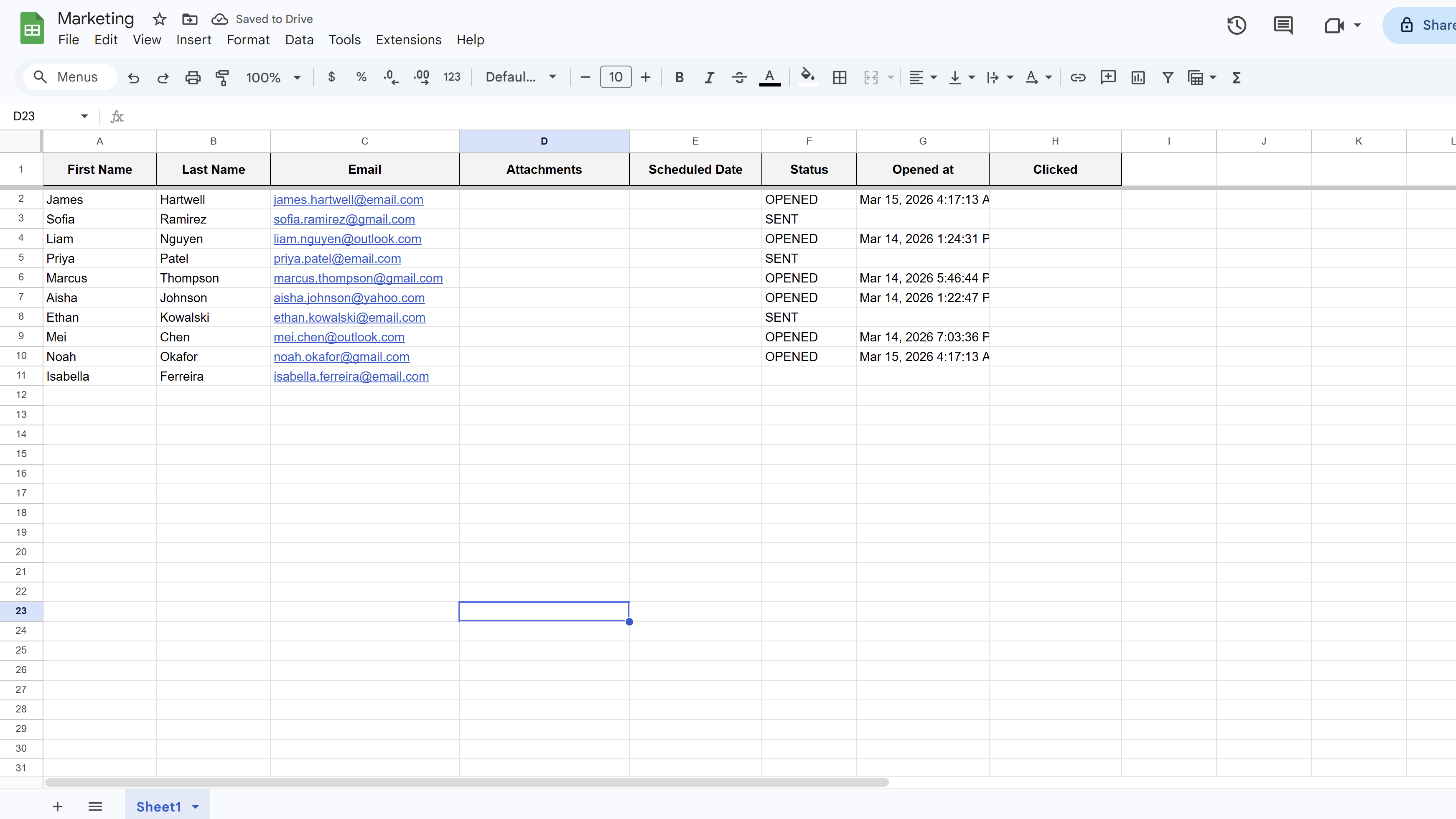
After sending, return to your Google Sheet. As recipients open emails, the Opened at column will populate with the timestamp of when each email was opened. The Status column for those rows will also update to OPENED.
You can use standard Google Sheets filtering and sorting to analyze your results — for example, filter for rows where "Opened at" is blank to identify recipients who haven't opened yet, then consider following up with a second email to that subset.
Tips and Best Practices
- Use open rates to A/B test subject lines — send two versions of your campaign to small groups, compare open rates, then send the winner to the rest of your list.
- Combine open tracking with click tracking to get a full picture: who opened, and of those, who clicked through.
- Keep in mind that open rates can be inflated by image pre-loading in certain email clients, so treat open data as directional rather than exact.
Common Pitfalls to Avoid
- Don't delete or rename the "Opened at" column while a campaign is in progress — the tracking system writes to it by name and it must remain intact.
- Open tracking requires your recipients' email clients to load images. Recipients who have "Load images" disabled in their email app will not register as opened, even if they read the email.
For a complete walkthrough of Gmail mail merge — including templates, scheduling, and tracking — see our Gmail Mail Merge: The Complete Guide. New to MassyMail? Install it free from the Google Workspace Marketplace.
Try Free
MassyMail: Mail Merge for Gmail
Send personalized bulk email campaigns directly from Gmail using your Google Sheets data. Schedule campaigns, track opens and clicks, and manage templates without leaving Google Workspace.
- Send up to 1,500 emails/day
- Merge fields & personalization
- Scheduled email campaigns
- Email open & click tracking
- Reusable email templates
- Built right into Google Sheets